- Customize the point and click actions and change the pointer speed
- Customize Windows navigation
- Customize the scroll functions
Customize the point and click actions and change the pointer speed
- Open Logitech SetPoint software:
Start > All Programs > Logitech > Mouse and Keyboard > Mouse and Keyboard Settings - In the SetPoint Settings window, click the My Mouse tab and select Touch Mouse M600.
- On the left side of the Touch Mouse M600 window, click the icon for Point and Click options.

- Under Point and Click, you can:
- Swap the left and right buttons
- Enable/disable the middle click feature
- Change the speed of the pointer by dragging the slider in the bottom left corner of the window.
Customize Windows navigation
- Open Logitech SetPoint software:
Start > All Programs > Logitech > Mouse and Keyboard > Mouse and Keyboard Settings - In the SetPoint Settings window, click the My Mouse tab and select Touch Mouse M600.
- On the left side of the Touch Mouse M600 window, click the icon for Navigate Windows options.

- Under Navigate Windows, you can enable or disable gesture shortcuts that simplify navigation:
- Bring up the Start menu
- Switch applications
- Show or hide the desktop
- Toggle between open tabs (Alt+Tab)
Each of these options allows for either a one finger or two finger tap/double-tap to trigger the option.
NOTE: The SetPoint user interface includes videos demonstrating the gestures supported by the M600. You can hover over any of the options to see a video demonstration of the gesture.
Customize the scroll functions
- Open Logitech SetPoint software:
Start > All Programs > Logitech > Mouse and Keyboard > Mouse and Keyboard Settings - In the SetPoint Settings window, click the My Mouse tab and select Touch Mouse M600.
- On the left side of the Touch Mouse M600 window, click the icon for Scroll options.
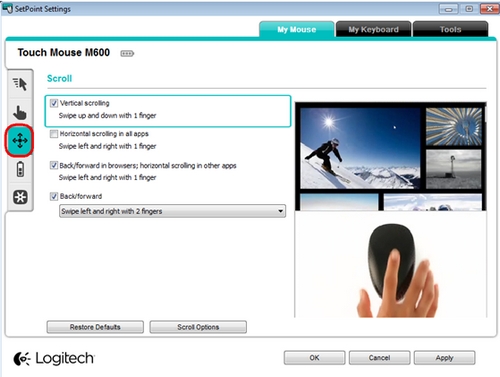
- Under Scroll, you can enable or disable:
- Vertical gesture shortcuts
- Horizontal gesture shortcuts
- Back/forward options in the browser and other applications that support these actions
NOTE: The SetPoint user interface includes videos demonstrating the gestures supported by the M600. You can hover over any of the options to see a video demonstration of the gesture.
Important Notice: The Firmware Update Tool is no longer supported or maintained by Logitech. We highly recommend using Logi Options+ for your supported Logitech devices. We are here to assist you during this transition.
Important Notice: The Logitech Preference Manager is no longer supported or maintained by Logitech. We highly recommend using Logi Options+ for your supported Logitech devices. We are here to assist you during this transition.
Important Notice: The Logitech Control Center is no longer supported or maintained by Logitech. We highly recommend using Logi Options+ for your supported Logitech devices. We are here to assist you during this transition.
Important Notice: The Logitech Connection Utility is no longer supported or maintained by Logitech. We highly recommend using Logi Options+ for your supported Logitech devices. We are here to assist you during this transition.
Important Notice: The Unifying Software is no longer supported or maintained by Logitech. We highly recommend using Logi Options+ for your supported Logitech devices. We are here to assist you during this transition.
Important Notice: The SetPoint software is no longer supported or maintained by Logitech. We highly recommend using Logi Options+ for your supported Logitech devices. We are here to assist you during this transition.
Frequently Asked Questions
There are no products available for this section
There are no Downloads for this Product
There are no Downloads for this Version
Compatible Product
