When the mouse buttons aren't working the way you programmed them to, the problem is most likely with the configuration. You can check the mouse settings in Logitech SetPoint Mouse and Keyboard Software, as described below.
Customizing the mouse buttons
To change the function of a button to perform a specific task:
-
Launch the Logitech SetPoint Mouse and Keyboard Software.
-
Start > Programs > Logitech > Mouse and Keyboard > Mouse and Keyboard Settings
-
-
Click the My Mouse tab at the top of the SetPoint Settings window, if it isn't already showing.
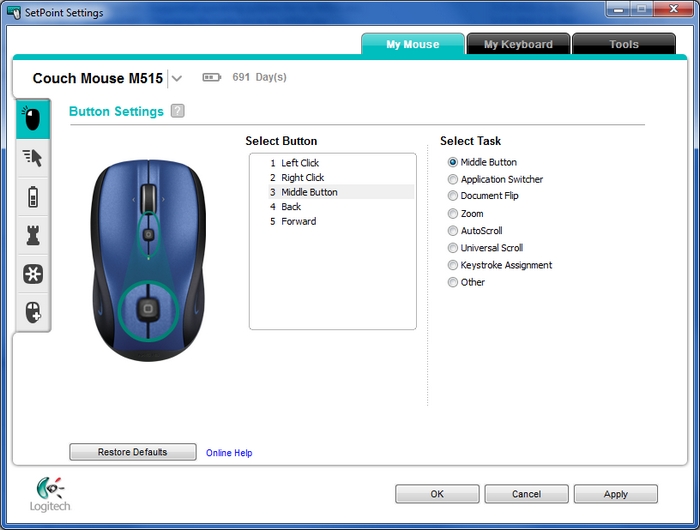
NOTE: If you have more than one Logitech mouse and the M515 isn't currently shown, click the down-arrow icon next to the current product name and select it from the drop-down menu that displays.
-
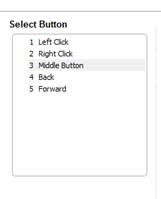
Choose the mouse button you want to customize in the Select Button field.
NOTE: If the Button Settings screen is not currently showing, click the mouse icon on the left toolbar to display it.
-
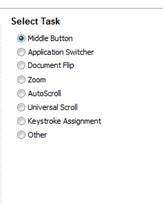
Choose the task you want to assign in the Select Task field..
NOTE: You can click the "?" icon next to Button Settings for detailed descriptions of these tasks.
.
-
Click Apply to save your settings and then OK to exit SetPoint.
Contact information
Need more help? See Knowledge Base article 22499 for how to contact Logitech Customer Care about this product.
Important Notice: The Firmware Update Tool is no longer supported or maintained by Logitech. We highly recommend using Logi Options+ for your supported Logitech devices. We are here to assist you during this transition.
Important Notice: The Logitech Preference Manager is no longer supported or maintained by Logitech. We highly recommend using Logi Options+ for your supported Logitech devices. We are here to assist you during this transition.
Important Notice: The Logitech Control Center is no longer supported or maintained by Logitech. We highly recommend using Logi Options+ for your supported Logitech devices. We are here to assist you during this transition.
Important Notice: The Logitech Connection Utility is no longer supported or maintained by Logitech. We highly recommend using Logi Options+ for your supported Logitech devices. We are here to assist you during this transition.
Important Notice: The Unifying Software is no longer supported or maintained by Logitech. We highly recommend using Logi Options+ for your supported Logitech devices. We are here to assist you during this transition.
Important Notice: The SetPoint software is no longer supported or maintained by Logitech. We highly recommend using Logi Options+ for your supported Logitech devices. We are here to assist you during this transition.
Frequently Asked Questions
There are no products available for this section
There are no Downloads for this Product
There are no Downloads for this Version
Compatible Product
