If you don't have a Sony PS3 and you want to hook up a Sony PS2 to your F540 base station instead, there are two ways to do this:
- Setup With sound systems using the Sony AV cables
- Setup Outputting directly from your AV receiver using RCA audio out
NOTE: We don't recommend using an F540 on PS2 systems when Optical audio out is being exported.
Setup With sound systems using the Sony AV cables
In addition to the cables you're currently using and the F540 base station, have these cables available:
-
RCA-to-RCA passthrough cable
-
Mini-USB PS3 voice cable (only required for games with chat or voice functionality)
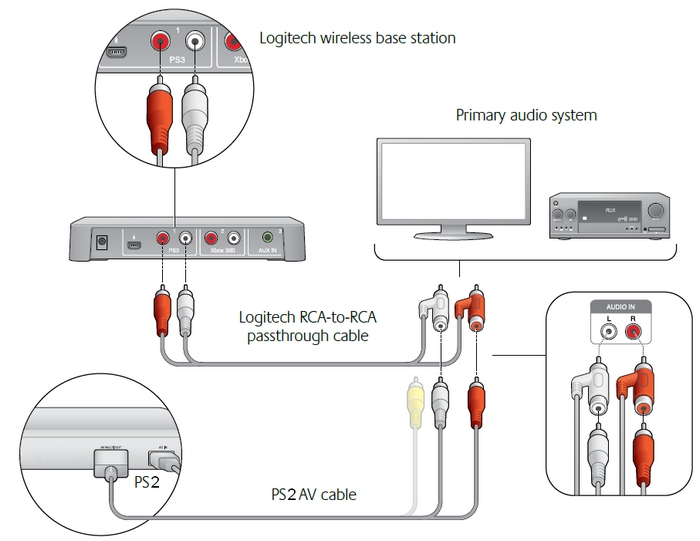
To set up the F540 for sound systems using the Sony AV cables:
-
Find where your Sony AV cable plugs into the back of your TV or AV system.
-
Take the RCA-to-RCA passthrough cable and plug Sony AV cable into the special passthrough jacks
-
Plug the combined AV cable and RCA passthrough cable back into your TV or AV system.
-
Connect the red and white RCA plugs from the passthrough cable into the red and white RCA jacks under PS3 on the back of your F540 base station.
-
(Optional) Connect the Mini-USB PS3 voice cable to both the rear USB port on the F540 base station and an available USB port on your PS2.
-
Connect the AC adapter from the AC socket to the base station.
Your F540 will now receive audio from your PS2 while preserving the analog audio going to your AV system or TV.
Setup Outputting directly from your AV receiver using RCA audio out
Sometimes, it may be necessary to use the RCA audio out of your TV or AV system instead of the Sony AV cables.
In addition to the cables you're currently using and the F540 base station, have the RCA-to-RCA passthrough cable available.
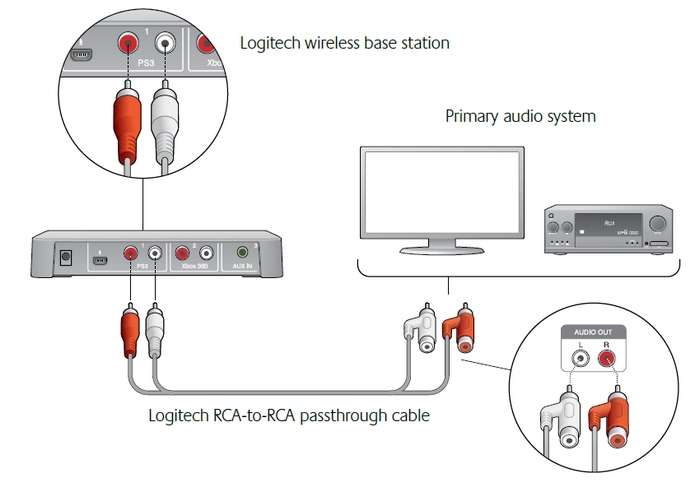
To set up the F540 to output directly from your TV or AV system using RCA audio out:
-
Find the RCA audio out on your TV or AV system.
-
Plug the RCA passthrough cable into the audio out from your TV or AV system.
-
Connect the red and white RCA plugs from the passthrough cable into the red and white RCA jacks under PS3 on the back of your F540 base station.
-
(Optional) Connect the Mini-USB PS3 voice cable to both the rear USB port on the F540 base station and an available USB port on your PS2.
-
Connect the AC adapter from the AC socket to the base station.
Your F540 will now receive audio from your TV or AV system, as long as the RCA audio out of your TV or AV system is enabled. See your TV or AV system manual for more information.
Important Notice: The Firmware Update Tool is no longer supported or maintained by Logitech. We highly recommend using Logi Options+ for your supported Logitech devices. We are here to assist you during this transition.
Important Notice: The Logitech Preference Manager is no longer supported or maintained by Logitech. We highly recommend using Logi Options+ for your supported Logitech devices. We are here to assist you during this transition.
Important Notice: The Logitech Control Center is no longer supported or maintained by Logitech. We highly recommend using Logi Options+ for your supported Logitech devices. We are here to assist you during this transition.
Important Notice: The Logitech Connection Utility is no longer supported or maintained by Logitech. We highly recommend using Logi Options+ for your supported Logitech devices. We are here to assist you during this transition.
Important Notice: The Unifying Software is no longer supported or maintained by Logitech. We highly recommend using Logi Options+ for your supported Logitech devices. We are here to assist you during this transition.
Important Notice: The SetPoint software is no longer supported or maintained by Logitech. We highly recommend using Logi Options+ for your supported Logitech devices. We are here to assist you during this transition.
Frequently Asked Questions
There are no products available for this section
There are no Downloads for this Product
There are no Downloads for this Version
Compatible Product
