Home theater devices sometimes need to warm up after they are first turned on. While they are warming up, they don't always respond to a remote control. For example, you turn on your TV and press the Volume Up button and nothing happens. Twenty seconds later you press it again and the volume finally goes up.
Your Harmony remote needs to know the warm up time (Power On Delay) for your devices so that it can wait after turning them on until they have warmed up before continuing to set up your Activities. This is necessary for any home theater device that switch inputs, including TVs, AV receivers, even DVD recorders.
To adjust the Power On Delay:
- Before adjusting the Power On Delay in the Logitech Harmony Remote software, you will first need to identify how long your device takes to warm up:
- Using the original remote, ensure the device you wish to adjust the Power On Delay for, is powered off
- Press the Power button on the original remote and count in seconds the duration of time between pressing the Power button and when you see a picture or hear sound from the device. Once you have identified the duration of time required for your device to warm up, proceed to the next step
- Launch the Logitech Harmony Remote Software and login to your account
- Click on the
 tab
tab - Click on the
 button next to the device you wish to adjust the Power On delay for
 - Select Adjust the delays (speed settings) and then click on the
 button
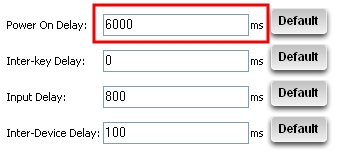
- Change the value of the Power On Delay by entering the duration of time (in milliseconds) your device requires to warm up and click on the button. In this example, our device takes 6 seconds to warm up, so we will enter 6000. Some TVs can take over 20 seconds to warm up!
- The Logitech Harmony Remote Software will then guide you through ensuring the Activities are setup correctly. Click on the button and follow the on-screen steps

- The last step is to update your remote for the changes you have made to be applied to your Harmony remote. Connect the Harmony remote to your computer's USB cable and click on the
 button on the Harmony homepage
Important Notice: The Firmware Update Tool is no longer supported or maintained by Logitech. We highly recommend using Logi Options+ for your supported Logitech devices. We are here to assist you during this transition.
Important Notice: The Logitech Preference Manager is no longer supported or maintained by Logitech. We highly recommend using Logi Options+ for your supported Logitech devices. We are here to assist you during this transition.
Important Notice: The Logitech Control Center is no longer supported or maintained by Logitech. We highly recommend using Logi Options+ for your supported Logitech devices. We are here to assist you during this transition.
Important Notice: The Logitech Connection Utility is no longer supported or maintained by Logitech. We highly recommend using Logi Options+ for your supported Logitech devices. We are here to assist you during this transition.
Important Notice: The Unifying Software is no longer supported or maintained by Logitech. We highly recommend using Logi Options+ for your supported Logitech devices. We are here to assist you during this transition.
Important Notice: The SetPoint software is no longer supported or maintained by Logitech. We highly recommend using Logi Options+ for your supported Logitech devices. We are here to assist you during this transition.
Frequently Asked Questions
There are no products available for this section
There are no Downloads for this Product
There are no Downloads for this Version
Compatible Product
