When the Harmony is setting up your Activities, it is powering on your devices and switching inputs in a very short period of time. Sending commands (power, volume up, play...) for one device can sometimes confuse the other devices in your home theater, causing them to lock up or "freeze" for a short period, up to a second. The Inter-Device Delay needs to be set correctly for all of your devices in order for this to happen successfully.
For example: You power on your television and then quickly try to power on your DVD player. The DVD player is confused by the TV's power command and ignores its own and doesn't power on. A few seconds later you try to power on the DVD player again and this time you are successful.
The Inter-Device Delay is the amount of time the Harmony waits between sending a command to one device before sending a command to another. If it is too short, your devices may not be able to keep up and might miss powering on or switching to the correct input.
To adjust the Inter-Device Delay:
- Launch the Logitech Harmony Remote Software and login to your account
- Click on the
 tab
tab - Click on the
 button next to the device you wish to adjust the Inter-Device Delay for
 - Select Adjust the delays (speed settings) and then click on the
 button
- Increase or lower the value of the Inter-Device Delay by entering the duration of time (in milliseconds). If your device isn't powering on or switching to the correct input without the use of the Help button, increase the Inter-Device Delay to a maximum of two seconds (2000 ms). Once finished, click on the button. In this example, we will increase the Inter-Device Delay to one second (1000 ms).
NOTE: Try increasing the Inter-Device Delay for all of the devices in the Activity you are having trouble with, not just the one device that isn't powering on or switching inputs correctly as it is the commands from your other devices which could be causing the conflict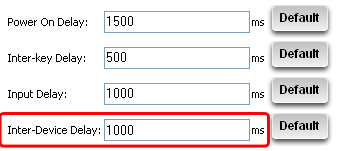
- The Logitech Harmony Remote Software will then guide you through ensuring the Activities are setup correctly. Click on the button and follow the on-screen steps

- The last step is to update your remote for the changes you have made to be applied to your Harmony remote. Connect the Harmony remote to your computer's USB cable and click on the
 button on the Harmony homepage
Important Notice: The Firmware Update Tool is no longer supported or maintained by Logitech. We highly recommend using Logi Options+ for your supported Logitech devices. We are here to assist you during this transition.
Important Notice: The Logitech Preference Manager is no longer supported or maintained by Logitech. We highly recommend using Logi Options+ for your supported Logitech devices. We are here to assist you during this transition.
Important Notice: The Logitech Control Center is no longer supported or maintained by Logitech. We highly recommend using Logi Options+ for your supported Logitech devices. We are here to assist you during this transition.
Important Notice: The Logitech Connection Utility is no longer supported or maintained by Logitech. We highly recommend using Logi Options+ for your supported Logitech devices. We are here to assist you during this transition.
Important Notice: The Unifying Software is no longer supported or maintained by Logitech. We highly recommend using Logi Options+ for your supported Logitech devices. We are here to assist you during this transition.
Important Notice: The SetPoint software is no longer supported or maintained by Logitech. We highly recommend using Logi Options+ for your supported Logitech devices. We are here to assist you during this transition.
Frequently Asked Questions
There are no products available for this section
There are no Downloads for this Product
There are no Downloads for this Version
Compatible Product
