If your TV uses a toggle input switching method (one button on the original remote that when pressed, cycles through the inputs one by one), when switching inputs the Harmony remote needs to know how long your TV takes to switch between inputs.
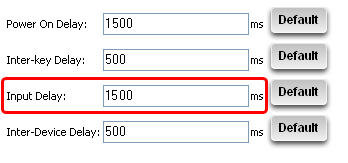
The Input Delay is the amount of time your Harmony waits between sending the input commands. If the Input Delay is too short, your Television won't respond to each input command sent, and will stop short before arriving at the correct input.
For example: A TV has the following inputs:
- Antenna
- Video1 (DVD player)
- Video2
- Video3
- Video4 (Satellite receiver)
A DVD player is connected to the TV on Video1 and a Satellite receiver on Video4. If you were watching a movie but now want to watch TV, you would need to press the Input button on your original remote three times. If the Input Delay is too short, the Harmony will send the correct number of input commands but too quickly. Instead of reaching Video4, the TV will stop at Video3.
To adjust the Input Delay:
- Launch the Logitech Harmony Remote Software and login to your account
- Click on the
 tab
tab - Click on the
 button next to the device you wish to adjust the Input Delay for
 - Select Adjust the delays (speed settings) and then click on the
 button
- Raise or lower the value of the Input Delay by entering the duration of time (in milliseconds). Once finished, click on the button. In this example, we will increase the Input Delay to 1.5 seconds (1500 ms).
- The Logitech Harmony Remote Software will then guide you through ensuring the Activities are setup correctly. Click on the button and follow the on-screen steps

- The last step is to update your remote for the changes you have made to be applied to your Harmony remote. Connect the Harmony remote to your computer's USB cable and click on the
 button on the Harmony homepage
Important Notice: The Firmware Update Tool is no longer supported or maintained by Logitech. We highly recommend using Logi Options+ for your supported Logitech devices. We are here to assist you during this transition.
Important Notice: The Logitech Preference Manager is no longer supported or maintained by Logitech. We highly recommend using Logi Options+ for your supported Logitech devices. We are here to assist you during this transition.
Important Notice: The Logitech Control Center is no longer supported or maintained by Logitech. We highly recommend using Logi Options+ for your supported Logitech devices. We are here to assist you during this transition.
Important Notice: The Logitech Connection Utility is no longer supported or maintained by Logitech. We highly recommend using Logi Options+ for your supported Logitech devices. We are here to assist you during this transition.
Important Notice: The Unifying Software is no longer supported or maintained by Logitech. We highly recommend using Logi Options+ for your supported Logitech devices. We are here to assist you during this transition.
Important Notice: The SetPoint software is no longer supported or maintained by Logitech. We highly recommend using Logi Options+ for your supported Logitech devices. We are here to assist you during this transition.
Frequently Asked Questions
There are no products available for this section
There are no Downloads for this Product
There are no Downloads for this Version
Compatible Product
