This article applies to the following products:
Harmony 890
Harmony 895
Harmony 890 Pro
Harmony 1000
The following article includes descriptions and illustrations of each of the states of the RF Extender, which can be used with any of the above remotes. This article is divided into four sections. To quickly access any section, please click on the links below:
1) Power Off:
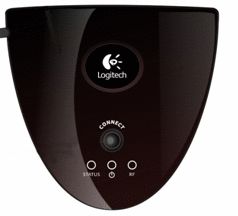
2) Power On:

3) USB Connected:
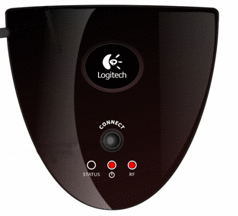
2) Press and hold the Connect button for approximately 60 seconds, until the Status and RF lights blink back and forth – Try Pairing again after resetting the Extender. For more information on why you would need to reset the RF Extender, see I am having problems pairing the remote and RF Extender

1) Missing Configuration: USB Disconnected
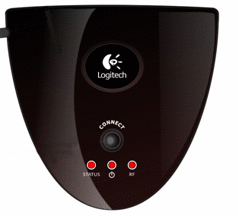
2) Missing Configuration: USB Connected
NOTE: The configuration is likely corrupt, so try updating again – This may require Safe Mode
To put the Extender in Safe Mode: Ensure the Extender is not plugged in to either power or your computer. Press and hold the Connect button while connecting the Extender to your computer. Continue to hold the Connect button until the RF and Status lights blink alternately, then release the Connect button. To find out when you would need to put the RF Extender in safe mode, see I am having problems upgrading the firmware or updating the RF Extender
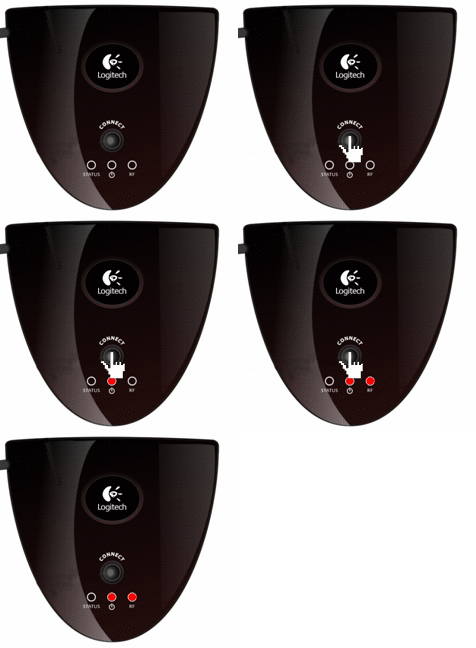
1) Safe Mode: USB Connected
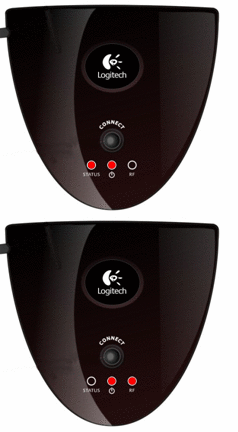
2) Safe Mode: USB Disconnected
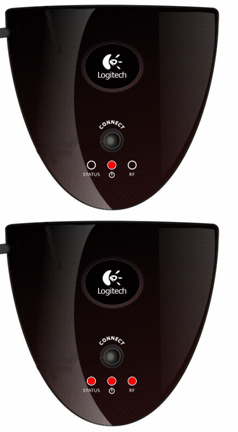
Important Notice: The Firmware Update Tool is no longer supported or maintained by Logitech. We highly recommend using Logi Options+ for your supported Logitech devices. We are here to assist you during this transition.
Important Notice: The Logitech Preference Manager is no longer supported or maintained by Logitech. We highly recommend using Logi Options+ for your supported Logitech devices. We are here to assist you during this transition.
Important Notice: The Logitech Control Center is no longer supported or maintained by Logitech. We highly recommend using Logi Options+ for your supported Logitech devices. We are here to assist you during this transition.
Important Notice: The Logitech Connection Utility is no longer supported or maintained by Logitech. We highly recommend using Logi Options+ for your supported Logitech devices. We are here to assist you during this transition.
Important Notice: The Unifying Software is no longer supported or maintained by Logitech. We highly recommend using Logi Options+ for your supported Logitech devices. We are here to assist you during this transition.
Important Notice: The SetPoint software is no longer supported or maintained by Logitech. We highly recommend using Logi Options+ for your supported Logitech devices. We are here to assist you during this transition.
Frequently Asked Questions
There are no products available for this section
There are no Downloads for this Product
There are no Downloads for this Version
Compatible Product
