This tutorial will show you how to customize the following features of your MK605 mouse buttons using Logitech Mouse and Keyboard software (SetPoint):
- Customizing the mouse buttons
- Adjusting your mouse movements
- Customizing mouse settings for games
- Checking the battery status
- Unifying software
Customizing the mouse buttons:
Do the following to change the specific function or task assigned to a mouse button:
-
Launch SetPoint (Start > Programs > Logitech > Mouse and Keyboard > Mouse and Keyboard Settings).
NOTE: If SetPoint is not installed, please download it from the MK605 Downloads Page.
-
Click the My Mouse tab on the top and click the Mouse Button Settings tab at the left. Then select the Wireless Mouse M505 from the Select Mouse drop-down menu:

-
Choose the button you want to customize from the Select Button field:

-
Choose the task you wish to assign from the Select Task field.

-
Click Apply to save your settings. Click OK to exit SetPoint.
Adjusting your mouse movements:
To change the pointer speed and customize your cursor, please do the following:
-
Launch SetPoint (Start > Programs > Logitech > Mouse and Keyboard > Mouse and Keyboard Settings).
-
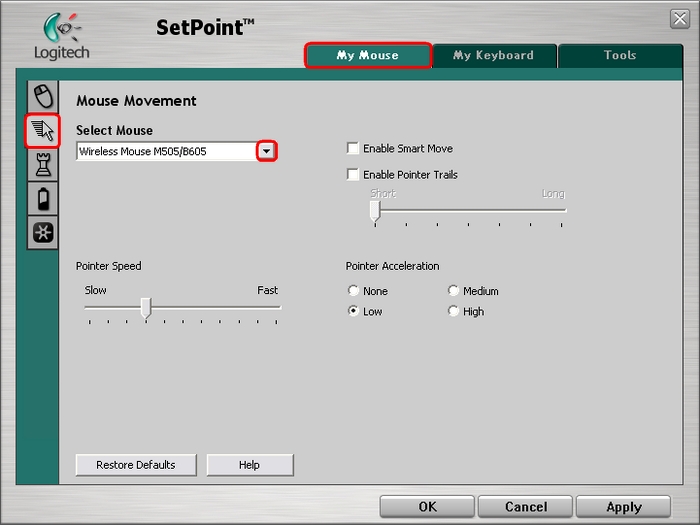
Select the My Mouse tab and click the Mouse Movement tab on the left. Select the M505 from the Select Mouse drop-down menu.
-
Use the sliders and checkboxes to configure the mouse settings that are right for you. Click Help to find detailed descriptions of these options.
-
Click Apply to save your settings. Click OK to exit SetPoint.
Customizing mouse settings for games:
In addition to adjusting the standard mouse settings, you also can specify certain settings when playing games. To adjust your mouse game settings, do the following:
-
Launch SetPoint (Start > Programs > Logitech > Mouse and Keyboard > Mouse and Keyboard Settings).
-
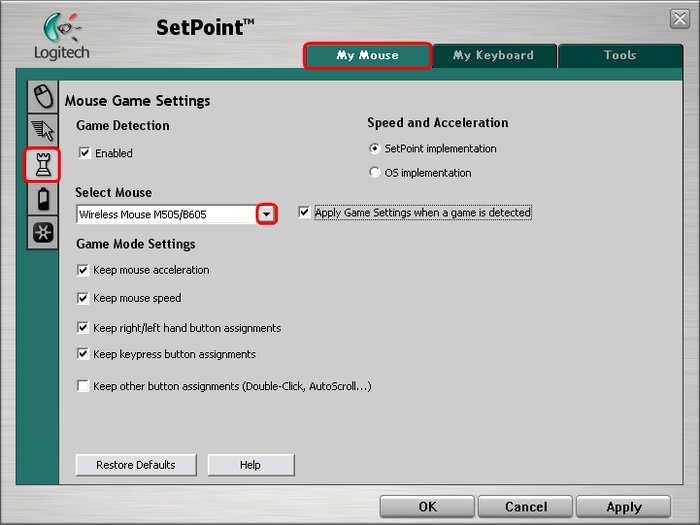
Select the My Mouse tab and click the Mouse Game Settings tab on the left. Select the M505 from the Select Mouse drop-down menu.
-
Use the drop-down menus and checkboxes to find the mouse settings that are right for you. Click Help to find detailed descriptions of these options for your mouse.
-
Click Apply to save your settings. Click OK to exit SetPoint.
You can check the battery status on your M505 mouse by doing the following:
-
Launch SetPoint (Start > Programs > Logitech > Mouse and Keyboard > Mouse and Keyboard Settings).
-
Select the My Mouse tab at the top of the windows and click the Mouse batteries tab at the left. Select the M505 from the Select Mouse drop-down menu as shown below:

-
View the battery status for your mouse.
-
Click OK to exit SetPoint.
The M505 uses the new Unifying receiver. You can launch the associated Unifying Software from this tab.

For instructions on using the Unifying Software, please see Knowledge Base article 360023391913.
Important Notice: The Firmware Update Tool is no longer supported or maintained by Logitech. We highly recommend using Logi Options+ for your supported Logitech devices. We are here to assist you during this transition.
Important Notice: The Logitech Preference Manager is no longer supported or maintained by Logitech. We highly recommend using Logi Options+ for your supported Logitech devices. We are here to assist you during this transition.
Important Notice: The Logitech Control Center is no longer supported or maintained by Logitech. We highly recommend using Logi Options+ for your supported Logitech devices. We are here to assist you during this transition.
Important Notice: The Logitech Connection Utility is no longer supported or maintained by Logitech. We highly recommend using Logi Options+ for your supported Logitech devices. We are here to assist you during this transition.
Important Notice: The Unifying Software is no longer supported or maintained by Logitech. We highly recommend using Logi Options+ for your supported Logitech devices. We are here to assist you during this transition.
Important Notice: The SetPoint software is no longer supported or maintained by Logitech. We highly recommend using Logi Options+ for your supported Logitech devices. We are here to assist you during this transition.
Frequently Asked Questions
There are no products available for this section
There are no Downloads for this Product
There are no Downloads for this Version
Compatible Product
