Normally, you should see a tab labeled My Mouse where you can customize your V470 Cordless Laser Mouse using the Logitech SetPoint Mouse and Keyboard Software. If this tab isn't displayed, you'll need to re-install SetPoint.
SetPoint with the My Mouse tab
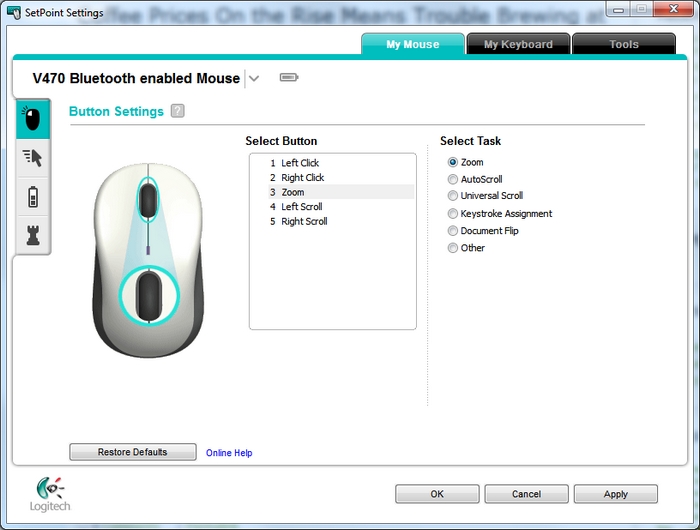
Here's how the SetPoint Settings window looks *with* the My Mouse tab:
SetPoint without the My Mouse tab
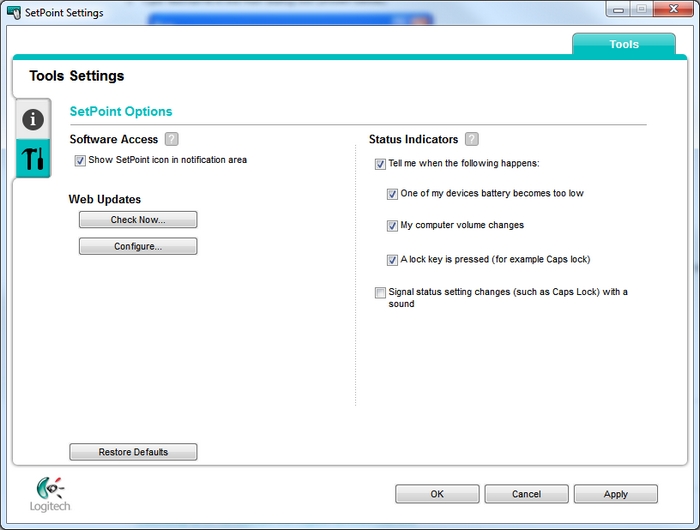
Here's how the SetPoint Settings window looks *without* the My Mouse and My Keyboards tabs:
To uninstall SetPoint:
-
Go to Add or Remove Programs:
-
Start menu view: Start > Control Panel > Add/Remove Programs
-
Classic start menu view: Start > Settings >Control Panel > Add/Remove Programs
-
-
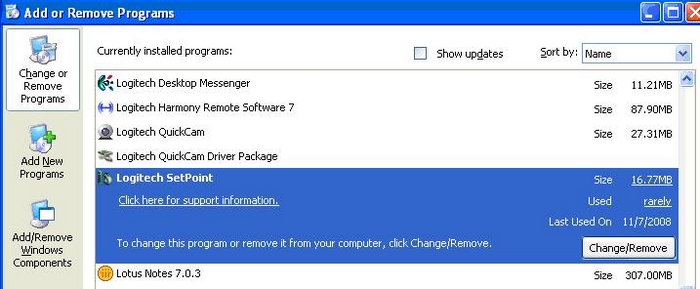
Select "Logitech SetPoint" from the list of programs displayed
-
Click the Remove button and follow the on-screen instructions to uninstall SetPoint.
-
Download and install the latest version of SetPoint from the V470 Mouse Downloads Page.
NOTE: You may need to restart your system after SetPoint has been installed.
-
After your system restarts, open SetPoint to verify that the My Mouse tabs are available
If the My Mouse tab is still missing:
-
Right-click on the SetPoint icon in the system tray (at the bottom right corner of the screen next to your clock) and select Exit.

-
Click on the Windows Start button and choose Run.
-
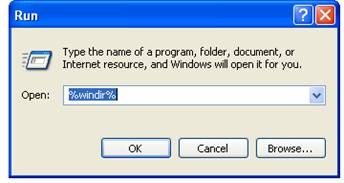
Type %windir% in the Run dialog box (shown below).
-
Double-click the System32 folder to open it.
-
Double-click the drivers folder.
-
Rename the file wdf01000.sys to wdf01000.bak.
-
Re-install SetPoint.
WARNING: Before you reboot, check if the wdf01000.sys file is present. Rebooting without this file may prevent some of your hardware, including mice and keyboards, from working properly. If the wdf01000.sys file is not present, rename wdf01000.bak back to wdf01000.sys.
-
Reboot the computer.
-
After your system restarts, open SetPoint to verify that the My Mouse tab is now available.
-
Go to Uninstall a program:
-
Start menu view: Start > Control Panel > Uninstall a program
-
Classic start menu view: Start > Settings >Control Panel > Programs and Features > Uninstall
-
-
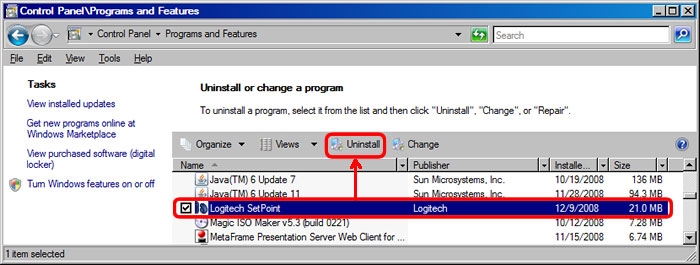
Select "Logitech SetPoint" from the list of programs displayed.
-
Click the Uninstall button highlighted above and follow the on-screen instructions to uninstall SetPoint.
-
Download and install the latest version of SetPoint from the EX 100 Downloads Page.
NOTE: You may need to reboot your system after SetPoint has been installed.
- After your system restarts, open SetPoint to verify that the My Mouse and My Keyboard tabs are available.
If the My Mouse tabs is still missing:
-
Right-click on the SetPoint icon in the system tray (at the bottom right corner of the screen next to your clock) and select Exit.
-
Click on the Windows Start button and choose Run.
-
Type %windir% in the Run dialog box (shown below).
-
Double-click the System32 folder to open it.
-
Double-click the drivers folder.
-
Rename the file wdf01000.sys to wdf01000.bak.
-
Re-install SetPoint.
WARNING: Before you reboot, check if the wdf01000.sys file is present. Rebooting without this file may prevent some of your hardware, including mice and keyboards, from working properly. If the wdf01000.sys file is not present, rename wdf01000.bak back to wdf01000.sys.
-
Reboot the computer.
-
After your system restarts, open SetPoint to verify that the My Mouse tab are now available.
Important Notice: The Firmware Update Tool is no longer supported or maintained by Logitech. We highly recommend using Logi Options+ for your supported Logitech devices. We are here to assist you during this transition.
Important Notice: The Logitech Preference Manager is no longer supported or maintained by Logitech. We highly recommend using Logi Options+ for your supported Logitech devices. We are here to assist you during this transition.
Important Notice: The Logitech Control Center is no longer supported or maintained by Logitech. We highly recommend using Logi Options+ for your supported Logitech devices. We are here to assist you during this transition.
Important Notice: The Logitech Connection Utility is no longer supported or maintained by Logitech. We highly recommend using Logi Options+ for your supported Logitech devices. We are here to assist you during this transition.
Important Notice: The Unifying Software is no longer supported or maintained by Logitech. We highly recommend using Logi Options+ for your supported Logitech devices. We are here to assist you during this transition.
Important Notice: The SetPoint software is no longer supported or maintained by Logitech. We highly recommend using Logi Options+ for your supported Logitech devices. We are here to assist you during this transition.
Frequently Asked Questions
There are no products available for this section
There are no Downloads for this Product
There are no Downloads for this Version
Compatible Product
