Product Overview
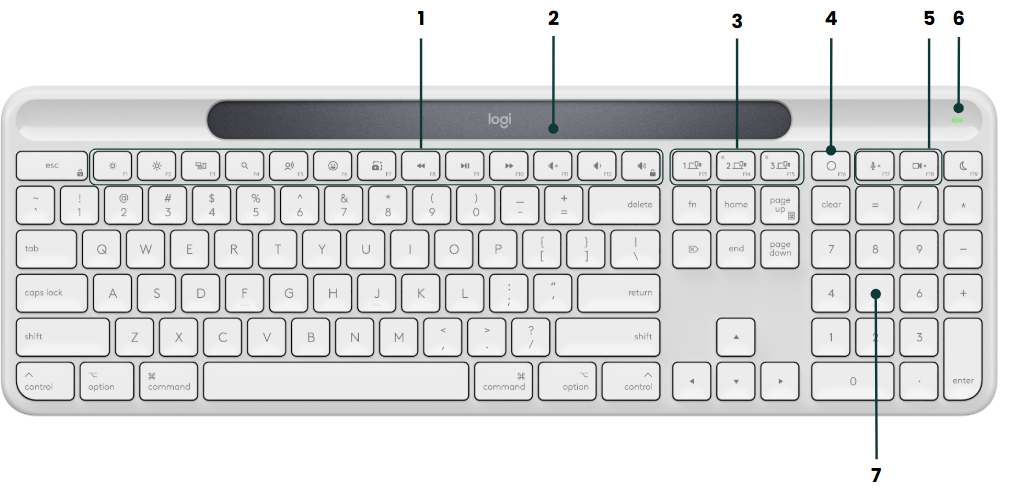
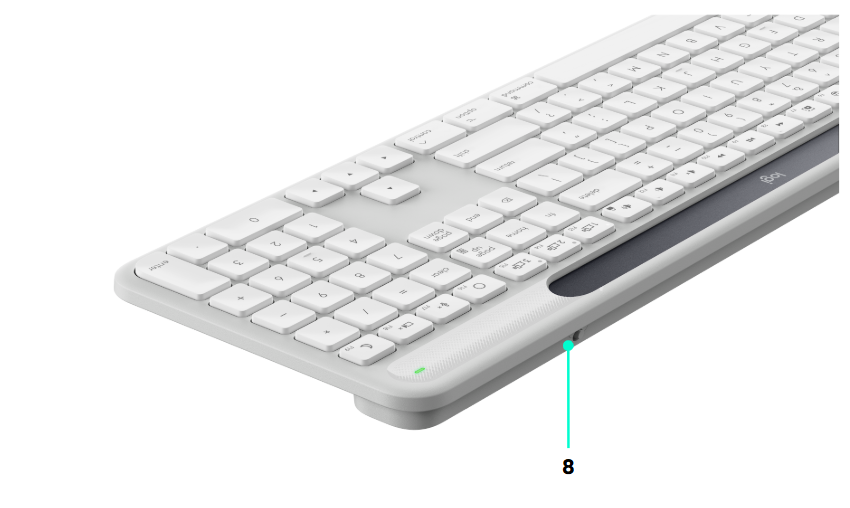
- Function keys (Productivity shortcuts & media control keys)/ F1-F12
- Solar panel
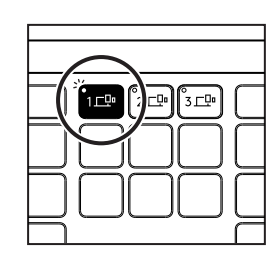
- Easy-Switch keys / Connect keys
- Action Key (Customizable via Logi Options+)
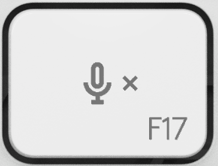
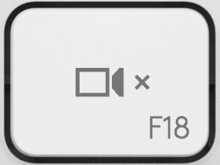
- VC control keys (Mute microphone & video on/off)
- Battery & power indicator
- Numpad
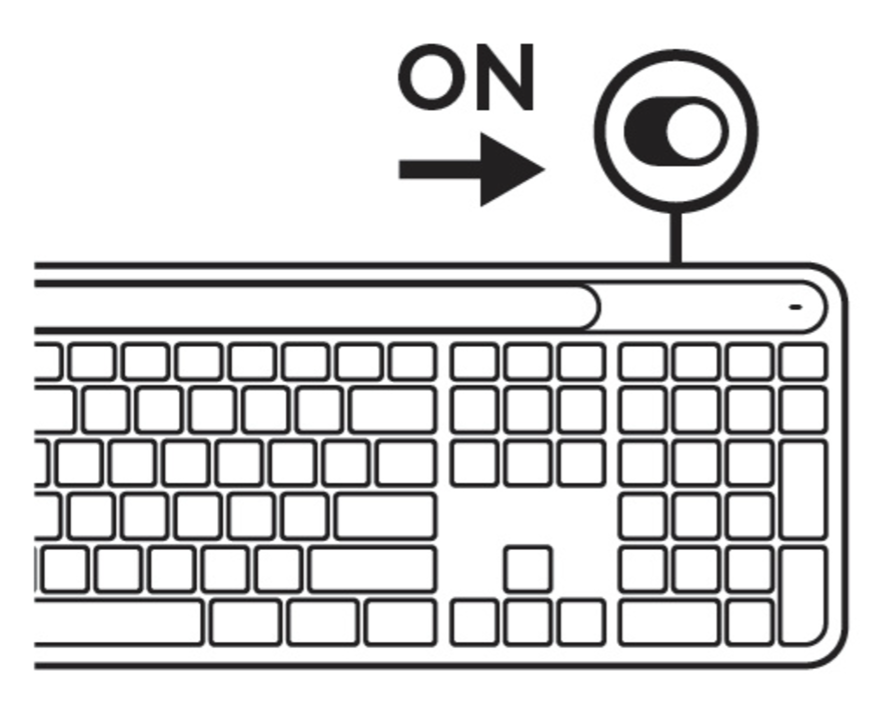
- On/Off switch
Connect your keyboard to your device
|
|
Step1: Turn on the keyboard by switching the On/Off slider to On position.
The white LED on the first Easy-Switch key will start blinking rapidly. |
|
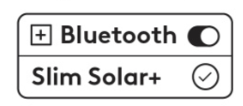
Step 2: Open the Bluetooth settings on your device. Add a new device by selecting Slim Solar+ from your list of devices.
|
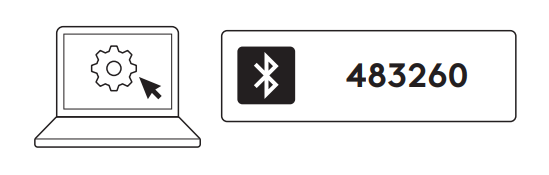 |
Step 3: Your keyboard is paired once the LED stops blinking. Your computer will require you to input a random set of numbers. Please type them all and press the Enter key on your keyboard. Your keyboard is now ready to use.
|
Connect your keyboard to multiple devices
Signature Slim Solar+ can connect up to three devices. Each Easy-Switch key pairs to one device.
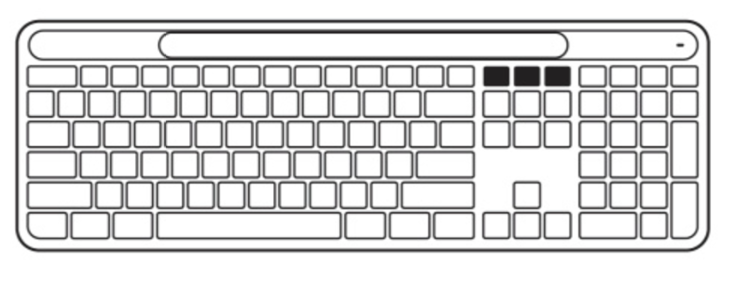 |
Each of the three Easy-Switch keys connects to one separate device. |
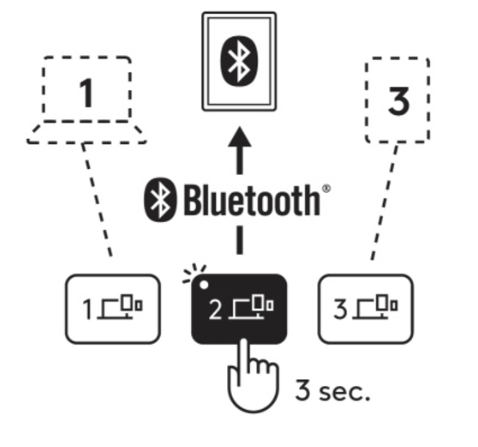 |
Step 1: To connect to a second device, press and hold the second Easy-Switch key for three seconds to put it on pairing mode. The LED light will start blinking fast. |
|
|
Step 2: Your keyboard is paired once the LED stops blinking. Your computer will require you to input a random set of numbers. Please type them all and press the Enter key on your keyboard. Your keyboard is now ready to use. |
Optional Logi Bolt receiver connection
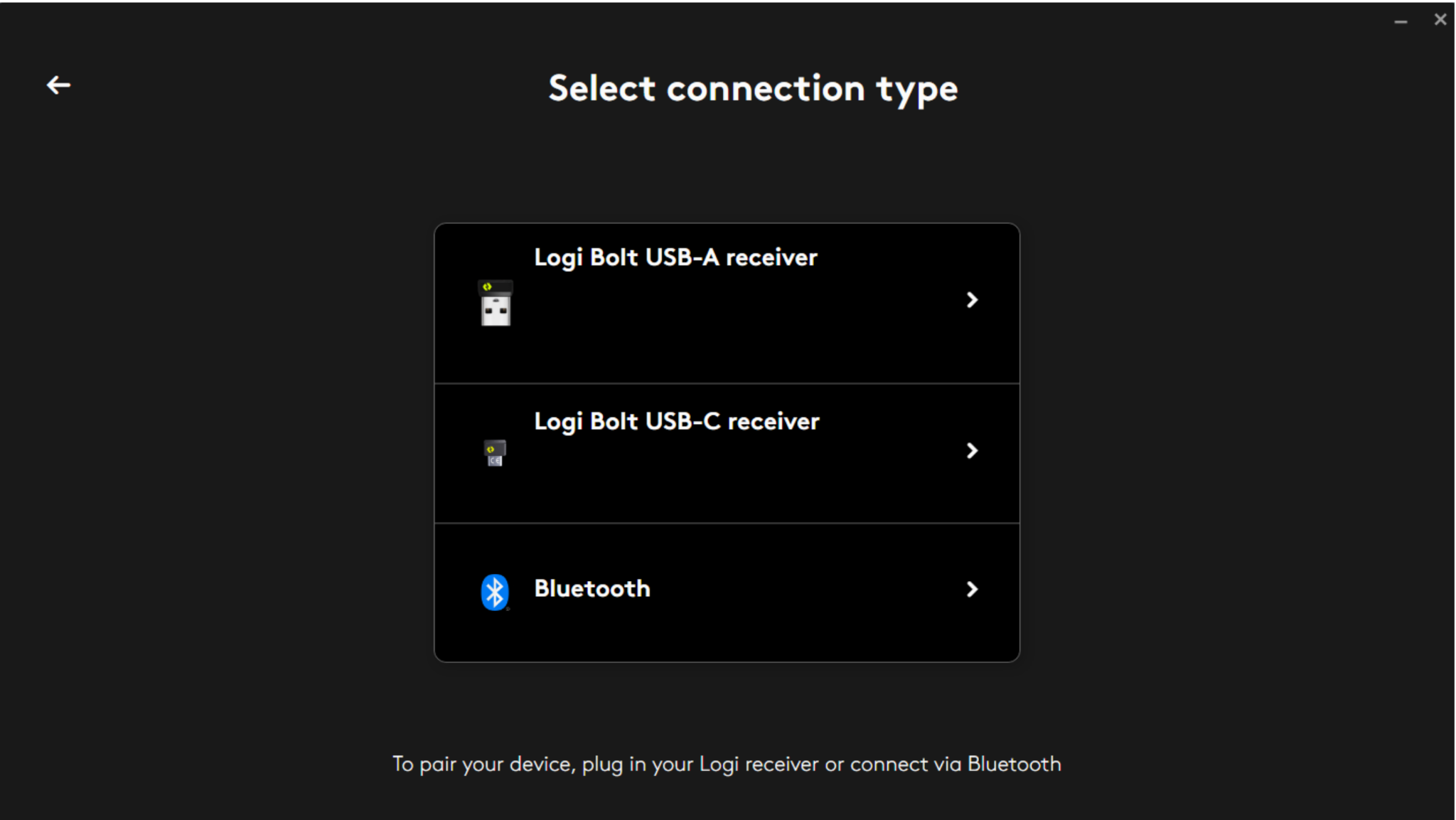
If you have a Logi Bolt receiver, you can also connect your Signature Slim Solar+ for Mac with it. You can do this using Logi Options+.
NOTE: Logi Bolt receiver is not included with your keyboard, it can be purchased separately.
- Plug the Logi Bolt receiver into a USB-C / USB-A port on your computer.
- Install the Logi Options+ app. Download and learn more about Logi Options+.
- Click ADD DEVICE in Logi Options+ app.

- Choose the Logi Bolt receiver and follow the instructions in Logi Options+ to complete the pairing process.
Keyboard Functions
You have a full range of useful productive tools on your keyboard that help you save time and work faster:
| F-Row Keys | |||||||
 |
 |
 |
 |
 |
 |
 |
|
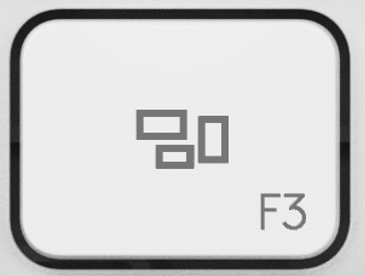
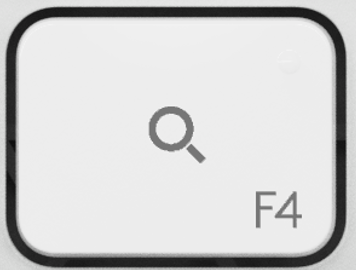
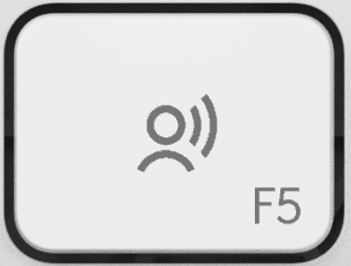
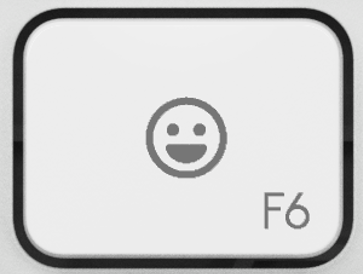
| Main function | Escape | Brightness down | Brightness up | Mission Control | Spotlight | Dictation1 | Emoji |
| Secondary functions | Fn lock | F1 | F2 | F3 | F4 | F5 | F6 |
| F-Row Keys | |||||||
 |
 |
 |
 |
 |
 |
 |
|
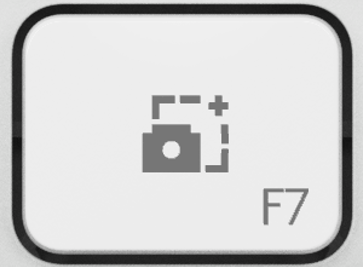
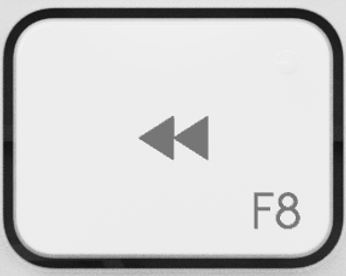
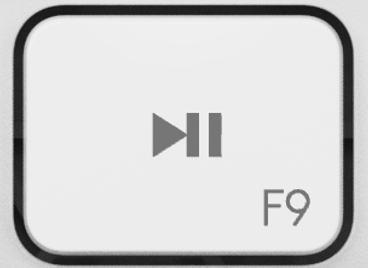
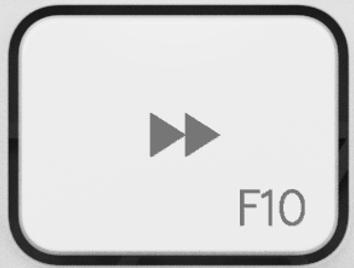
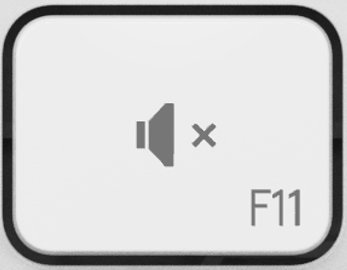
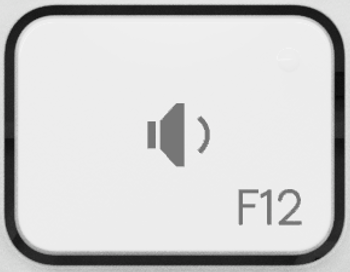
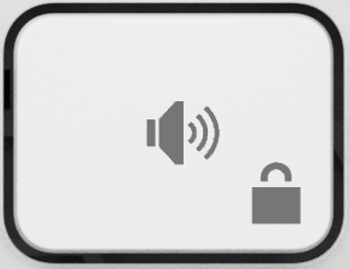
| Main function | Capture selected area | Previous track | Play/ Pause | Next track | Mute volume | Volume down | Volume up |
| Secondary functions | F7 | F8 | F9 | F10 | F11 | F12 | Screen lock2 |
| F-Row Keys | ||||||
 |
 |
 |
 |
 |
 |
|
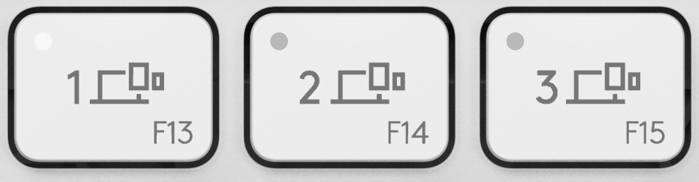
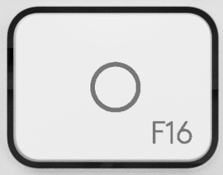
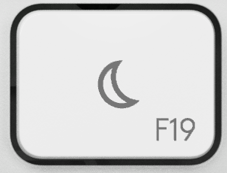
| Main function | Page up | Easy -Switch | Action key3 | System Mute Mic3 | Video On/Off3 | Do not disturb |
| Secondary functions | Contextual menu | F13, F14, F15 | F16 | F17 | F18 | F19 |
1 Dictation key needs Logi Options+ installed to work on Macbook Air M1 and 2022 Macbook Pro (M1 Pro and M1 Max chip).
2 Screen lock key needs Logi Options+ App installed for France keyboard layouts.
3 Free Logi Options+ software is required to enable full functionality.
Extra Shortcut Keys
Extra shortcut keys are included on the Signature Slim Solar+ for Mac keyboard and functions listed as the table below:
| Extra shortcut keys | |||
| Without software | With Options+ | ||
| macOS | Action Key | Does nothing | To be customized with Smart Actions and AI tools (Launch Siri, Perplexity, ChatGPT, Logi AI Prompt Builder, etc.) |
| Mute Mic | Does nothing | System Mute or Mute on Zoom and Teams | |
| Video On/Off | Does nothing | Video toggle Zoom and Teams | |
*Copilot requires Windows 11 or later and Gemini requires Chrome version 133.0.6882.0 or above. 6.
How to use Function keys instead of shortcut keys
There are three ways to use the Function keys, F-keys, instead of the shortcut keys:
- Press and hold the fn key + one of the F-keys from the F-row.
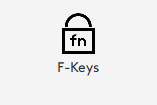
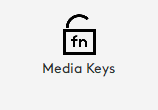
- Use fn Lock to bypass holding the fn key. To lock, press fn + Esc to switch between the Hotkeys and Media keys to the F-keys. To unlock, press fn + Esc.
- Use Logi Options+ to choose swap between F-Keys or Media Keys under SETTINGS.
With Logi Options+ installed, you can get on-screen notifications when you swap between Media Keys and F-Keys.
NOTE: By default, the keyboard has direct access to Media Keys.
Battery Status Notification
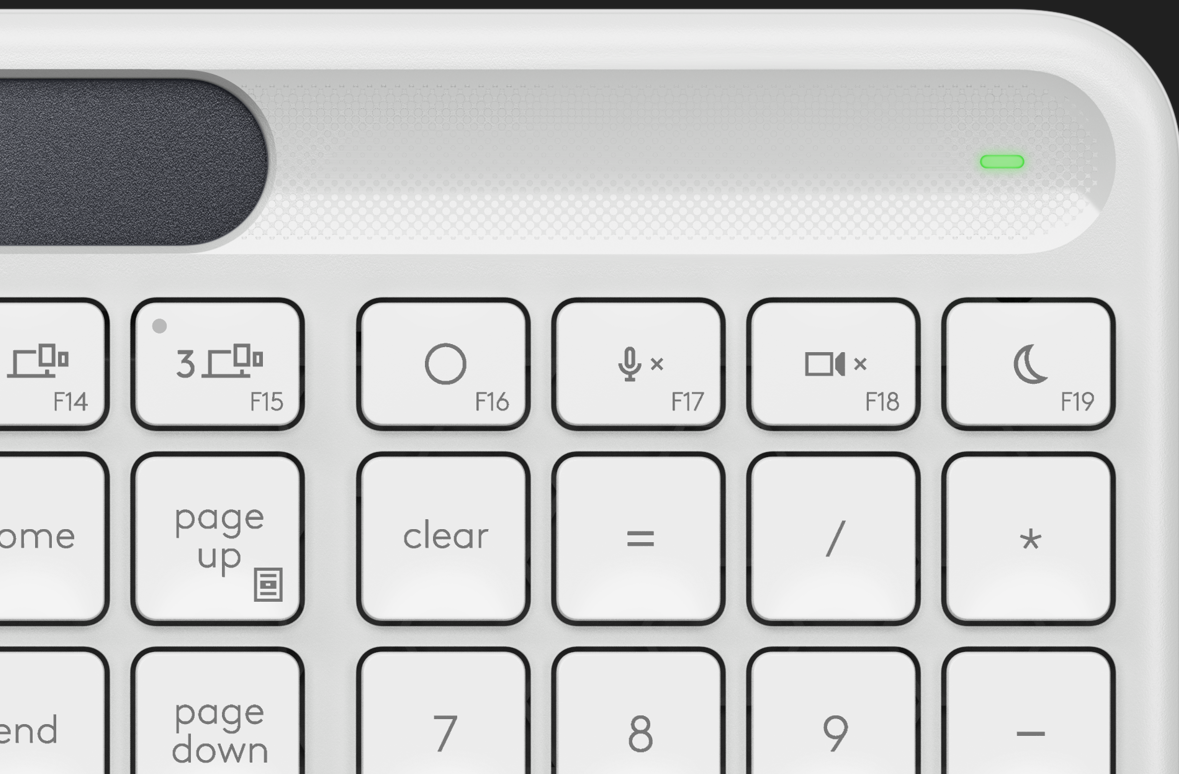
| When the battery level is between 11% to 100%, the LED color will stay green. |
|
| When the battery level is below 11%, the LED will turn red. | 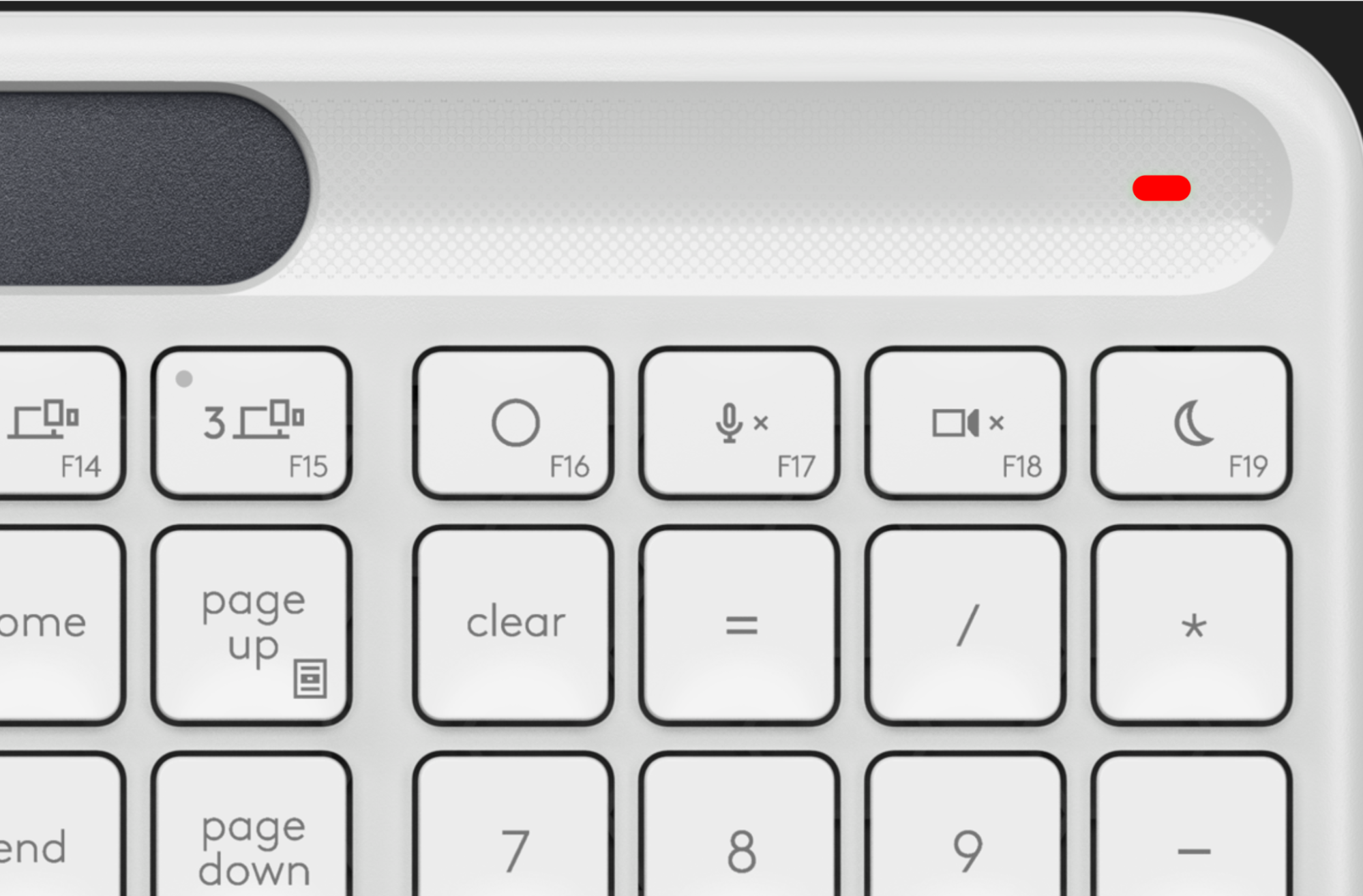 |
Light Power Management And Maintenance
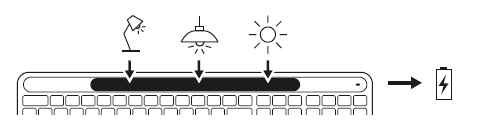
Signature Slim Solar+ for Mac charges efficiently under a range of light sources—desk lamps, ceiling lights, or natural sunlight—as long as the light intensity is at least 200 lux.
Equipped with a rechargeable battery, the keyboard will function in dark or low-light environments. However, as it relies solely on light for charging, it's important to:
- Regularly expose the keyboard to adequate lighting.
- Avoid prolonged use in darkness or low-light
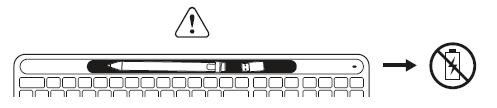
Do not drop or place objects on the solar panel. Obstructions will reduce charging performance and may disrupt your keyboard’s usage.
There is no charging port on the keyboard. If the battery is depleted to 0%, place the keyboard under bright light (over 1,000 lux) for an extended period to recharge.
Download Logi Options+ and use the LightCheck feature to verify that your keyboard is receiving sufficient illuminance for continuous use if you are unsure about your workspace lighting.
Install Logi Options+
Download Logi Options+ to customize your keyboard and explore shortcuts like Smart Actions, AI tools and more. Download and learn more about the full range of features.
How to use LightCheck to make sure your workplace having sufficient light to power your keyboard
- Download and install Logi Options+.
- Open Logi Options+. A window will open and you'll see an image of your keyboard. Click on it.
- You will be taken into a quick onboarding process that shows you the functionality of your keyboard.
- During the onboarding process, click CHECK NOW LIGHTING CONDITION to use the LightCheck feature in Logi Options+.
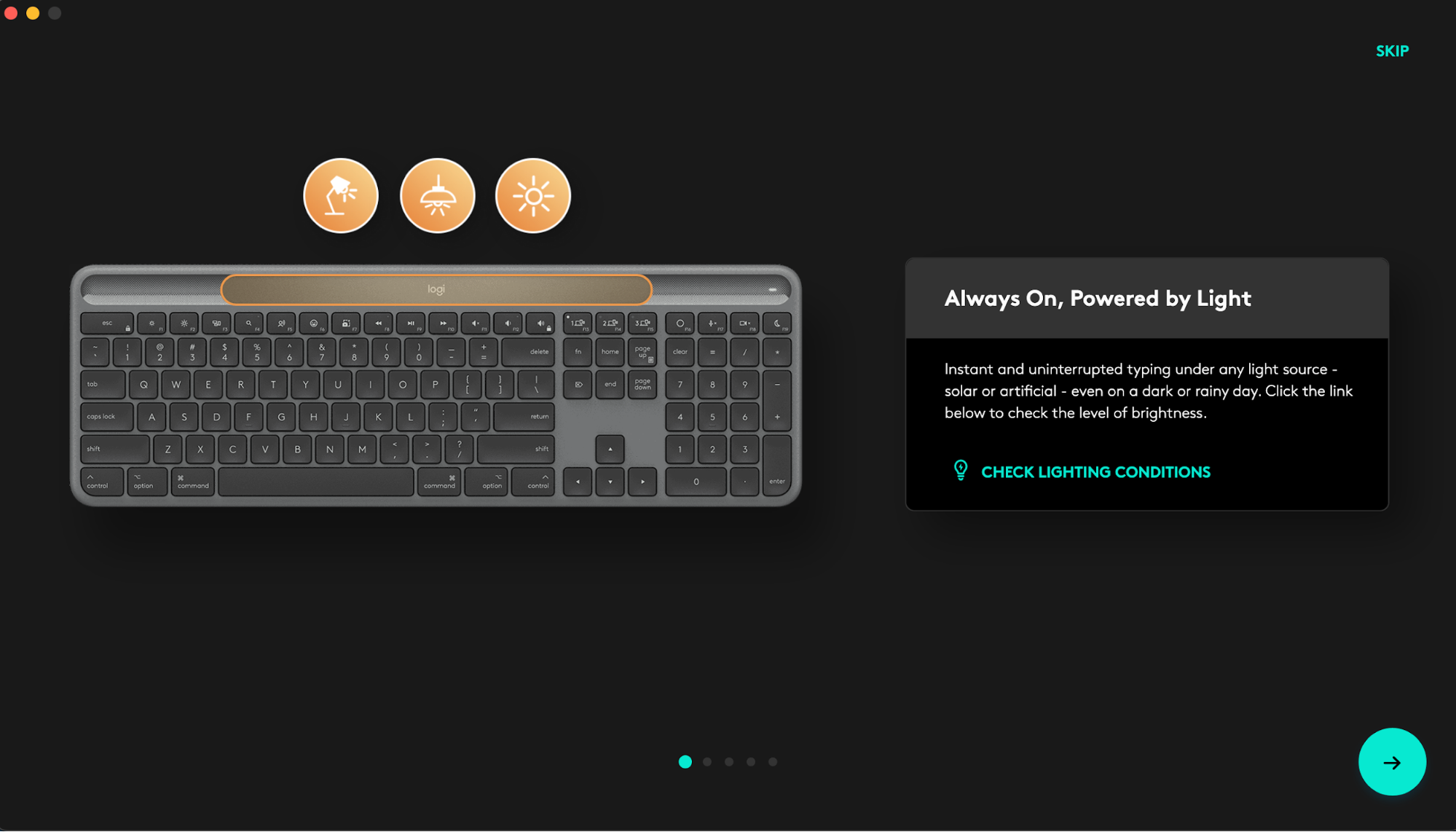
- The message "Sufficient light to keep charging" indicates optimal lighting conditions in your workspace for continuous keyboard charging. Your keyboard will receive ample power for typical usage.
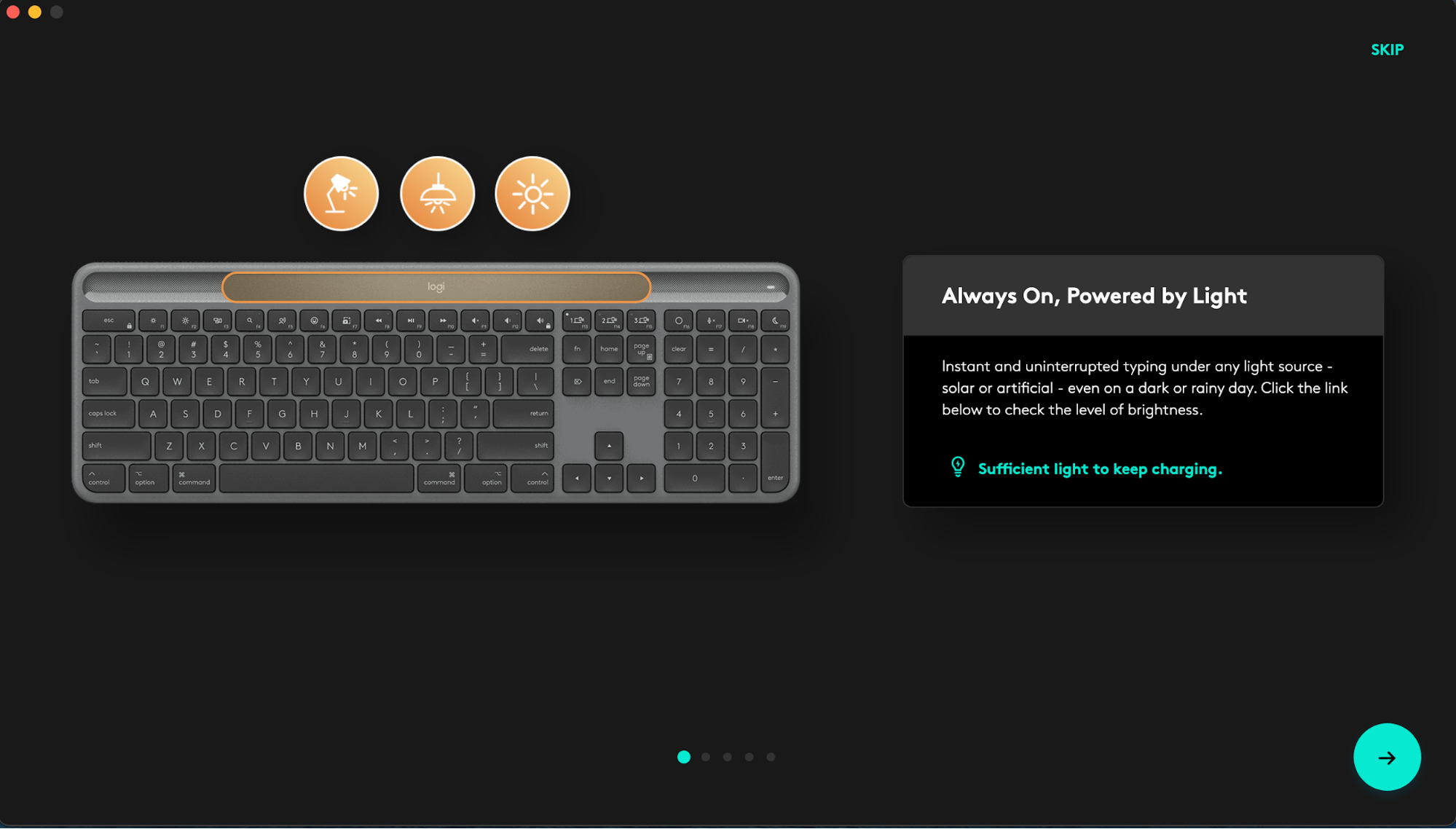
The message “Insufficient light, battery level might drop depending” indicates your workspace lighting is too dim for continuous keyboard charging. Your keyboard’s battery level might drop depending on your usage. To ensure optimal charging, increase your workspace brightness and rerun LightCheck.
Apart from running LightCheck during the onboarding process, you can run the LightCheck function on the product page in Logi Options+.
- Click the “Light Bulb” icon next to the battery level indicator.
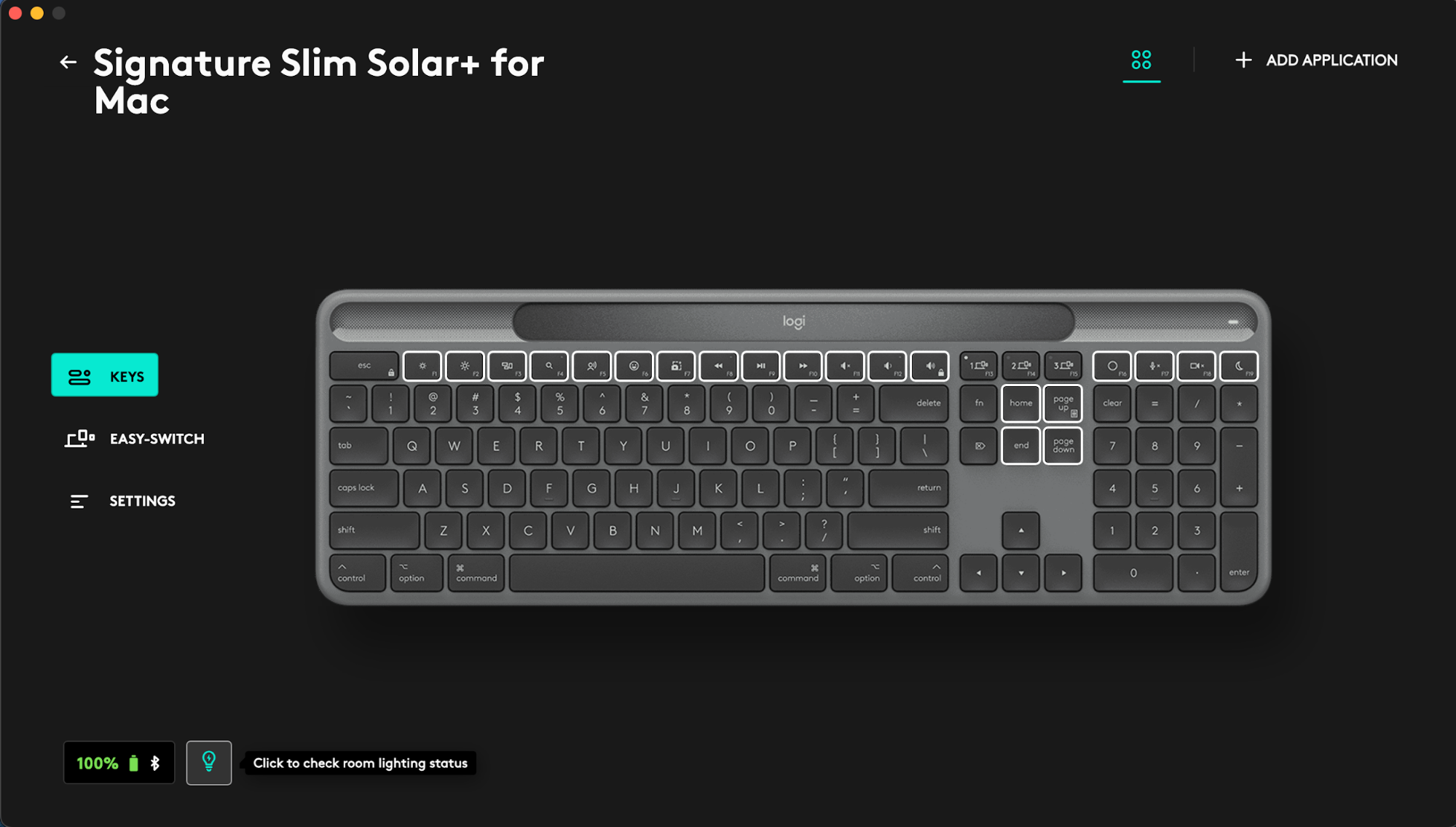
- The message "Sufficient light to keep your keyboard charging" indicates optimal lighting conditions in your workspace for continuous keyboard charging. Your keyboard will receive ample power for typical usage.
The message “Insufficient light, keyboard battery level might drop depending on your usage.” indicates your workspace lighting is too dim for continuous keyboard charging. Your keyboard’s battery level might drop depending on your usage. To ensure optimal charging, increase your workspace brightness and rerun LightCheck.
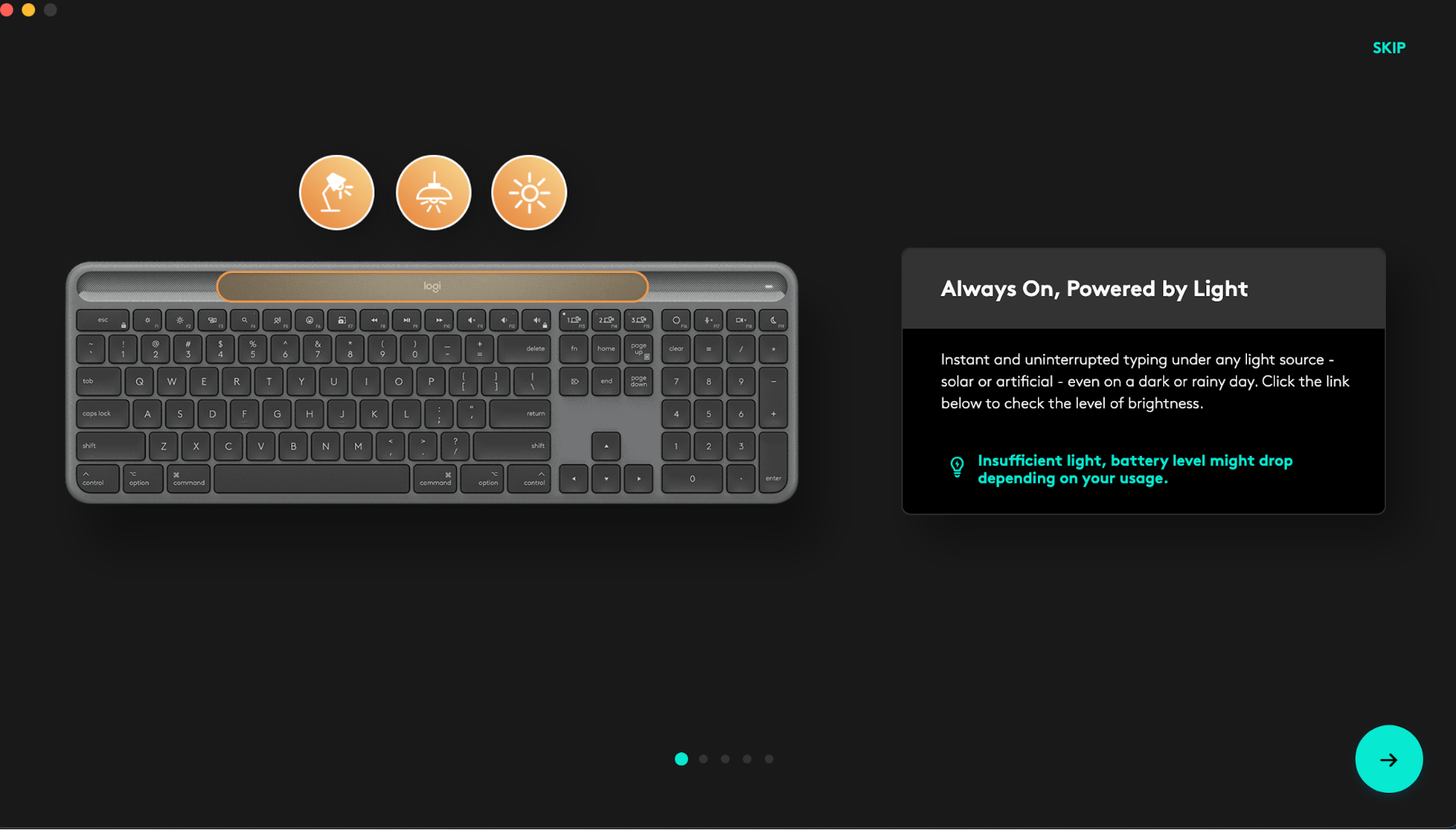
How to customize your keyboard through Logi Options+
- Download and install Logi Options+.
- Open Logi Options+ then click on the image of your keyboard.
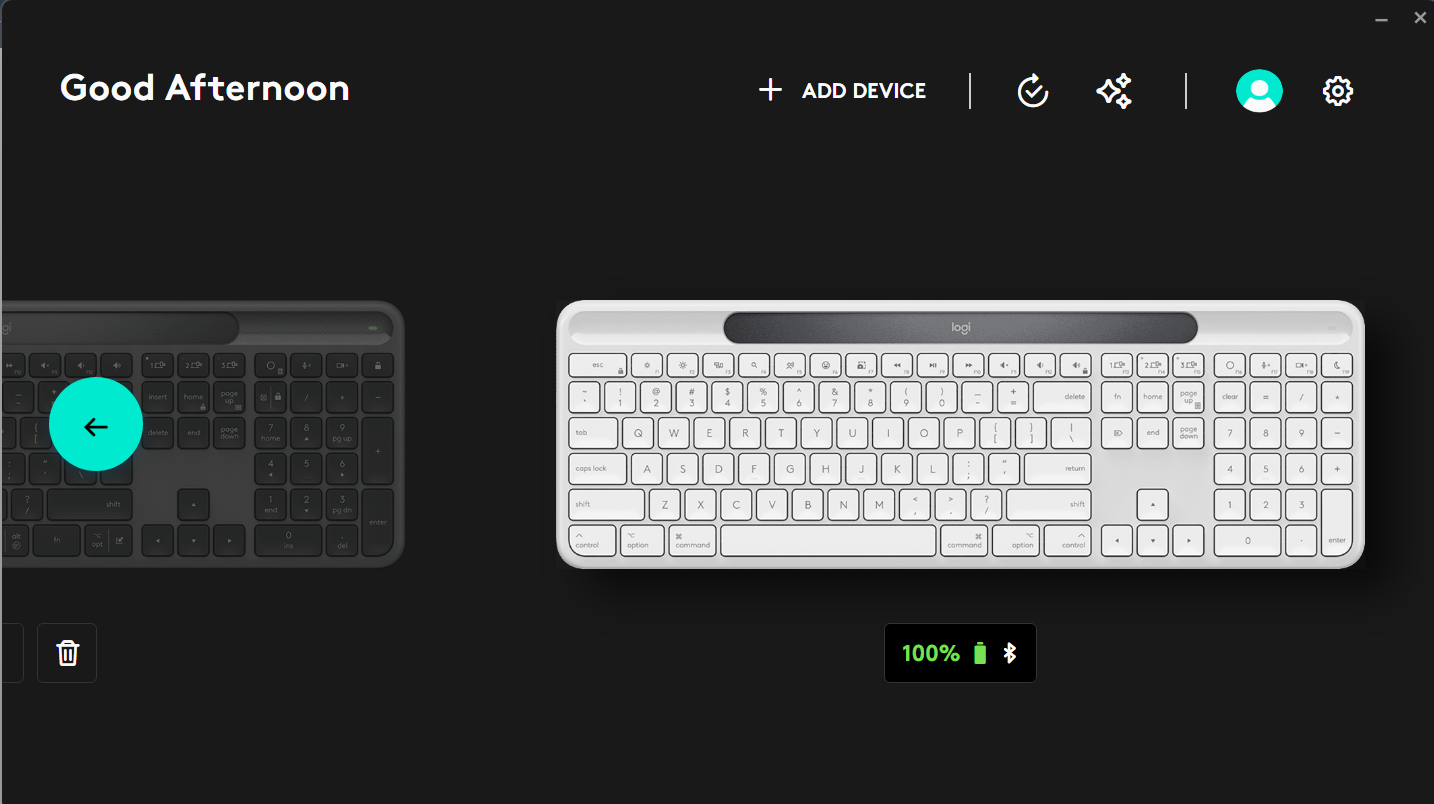
- An onboarding process will show you how to customize your keyboard. We highly recommend not to skip it.
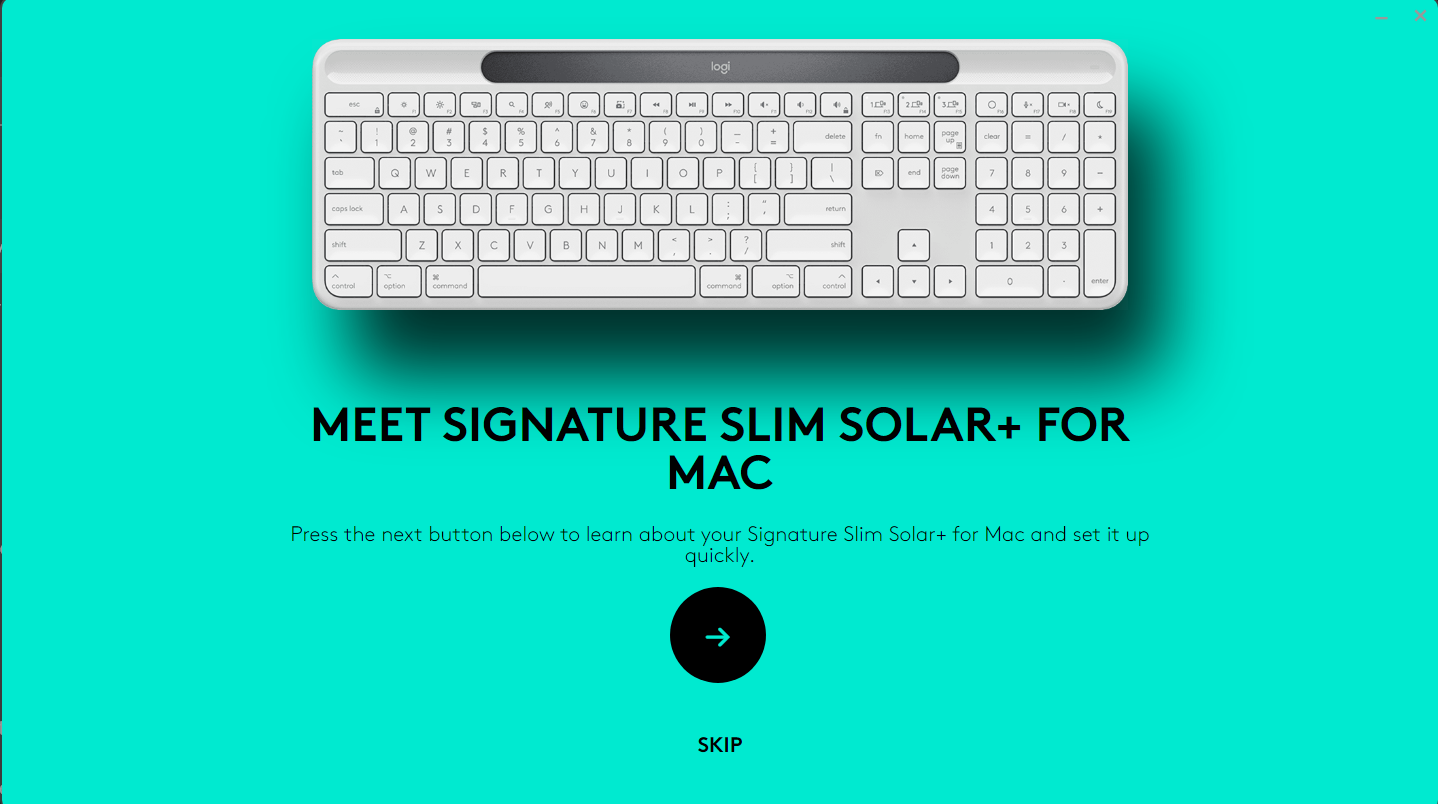
- Once you finish, you can start your customization. Click on Keys on the left side of the window.
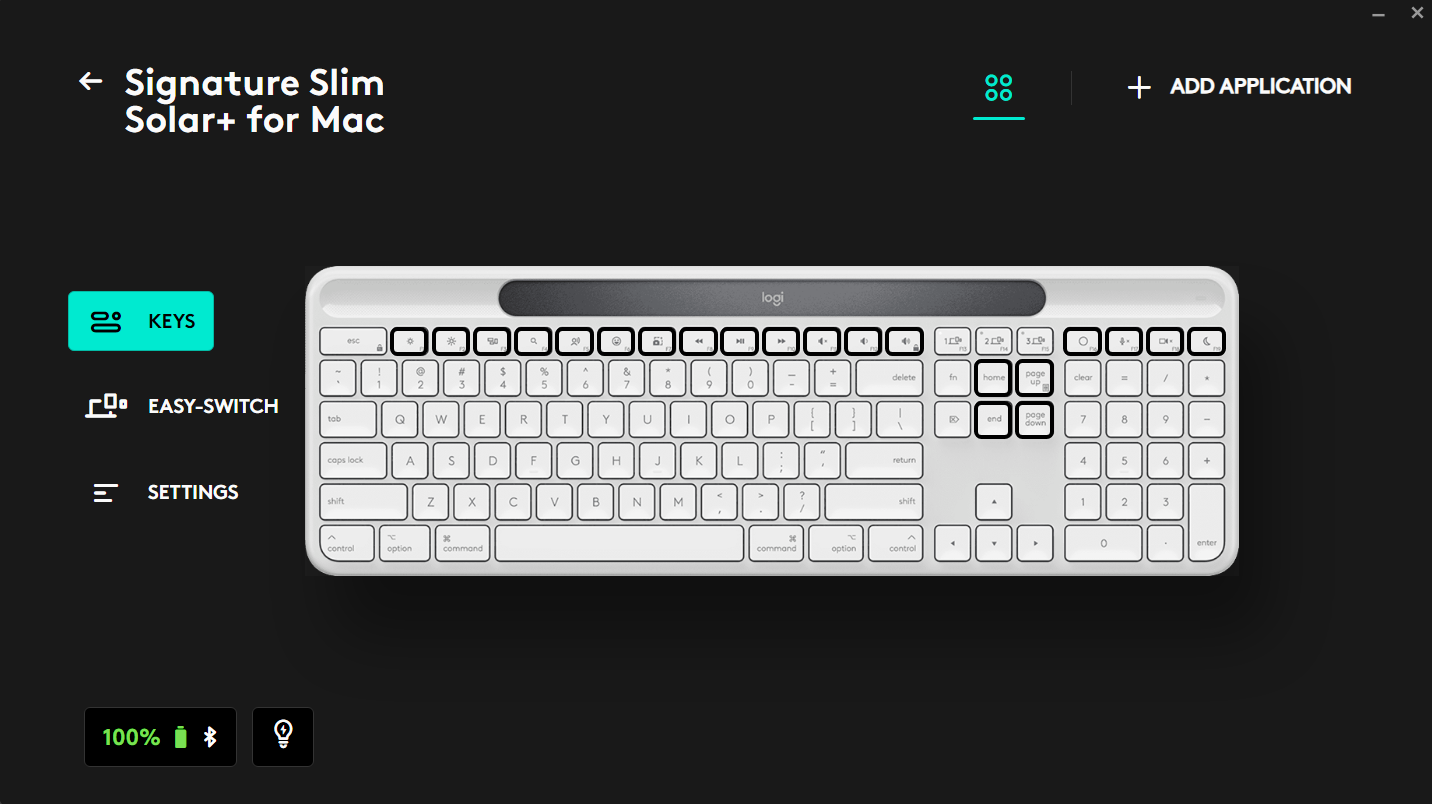
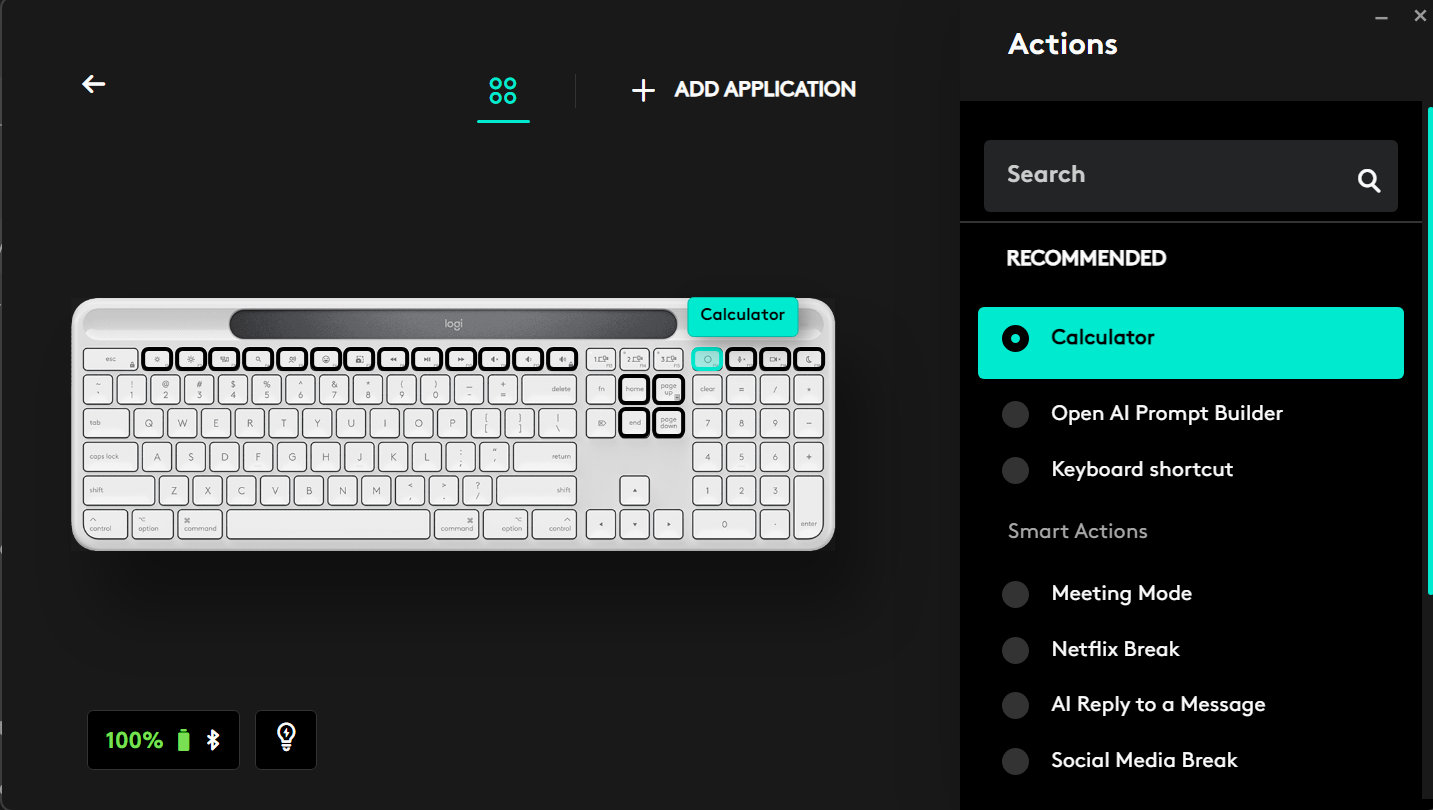
- The keys highlighted are customizable. Click on a customizable key and recommendations and other functions will appear. Select the function you would like to set for the keys.
Caps Lock Notification
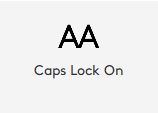
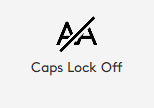
Slim Solar+ does not equip a Caps Lock LED indicator. A screen notification appears after Logi Options+ is installed.
Important Notice: The Firmware Update Tool is no longer supported or maintained by Logitech. We highly recommend using Logi Options+ for your supported Logitech devices. We are here to assist you during this transition.
Important Notice: The Logitech Preference Manager is no longer supported or maintained by Logitech. We highly recommend using Logi Options+ for your supported Logitech devices. We are here to assist you during this transition.
Important Notice: The Logitech Control Center is no longer supported or maintained by Logitech. We highly recommend using Logi Options+ for your supported Logitech devices. We are here to assist you during this transition.
Important Notice: The Logitech Connection Utility is no longer supported or maintained by Logitech. We highly recommend using Logi Options+ for your supported Logitech devices. We are here to assist you during this transition.
Important Notice: The Unifying Software is no longer supported or maintained by Logitech. We highly recommend using Logi Options+ for your supported Logitech devices. We are here to assist you during this transition.
Important Notice: The SetPoint software is no longer supported or maintained by Logitech. We highly recommend using Logi Options+ for your supported Logitech devices. We are here to assist you during this transition.
Frequently Asked Questions
There are no products available for this section
There are no Downloads for this Product
There are no Downloads for this Version
Compatible Product
