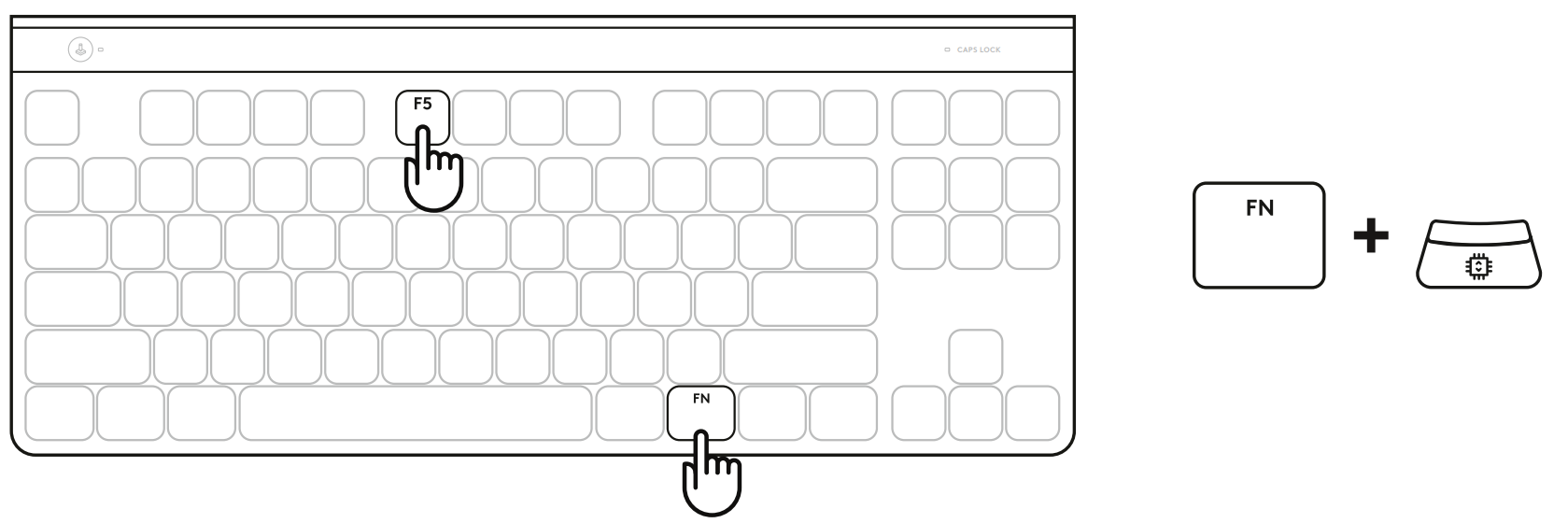
The Customizable Analog Profile can be selected by holding the FN key and pressing F5. It can be configured on the fly with no software required. Follow the instructions below to modify the actuation point & rapid trigger for all keys in the Customizable Analog Profile.
Quick Actuation Point adjustment:
- Activate the Customizable Analog Profile by pressing FN+F5. The F5 key’s backlight will turn Cyan to indicate that you have entered the configuration.
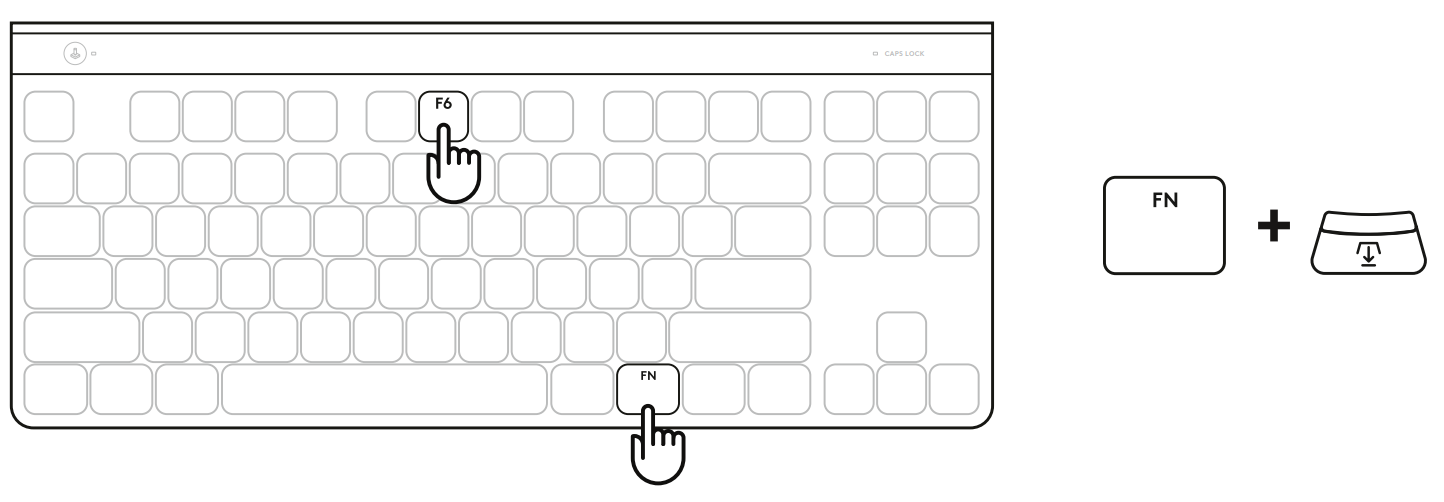
- To enter Actuation Point adjustment mode, press FN+F6. You will see the default settings highlighted in blue.
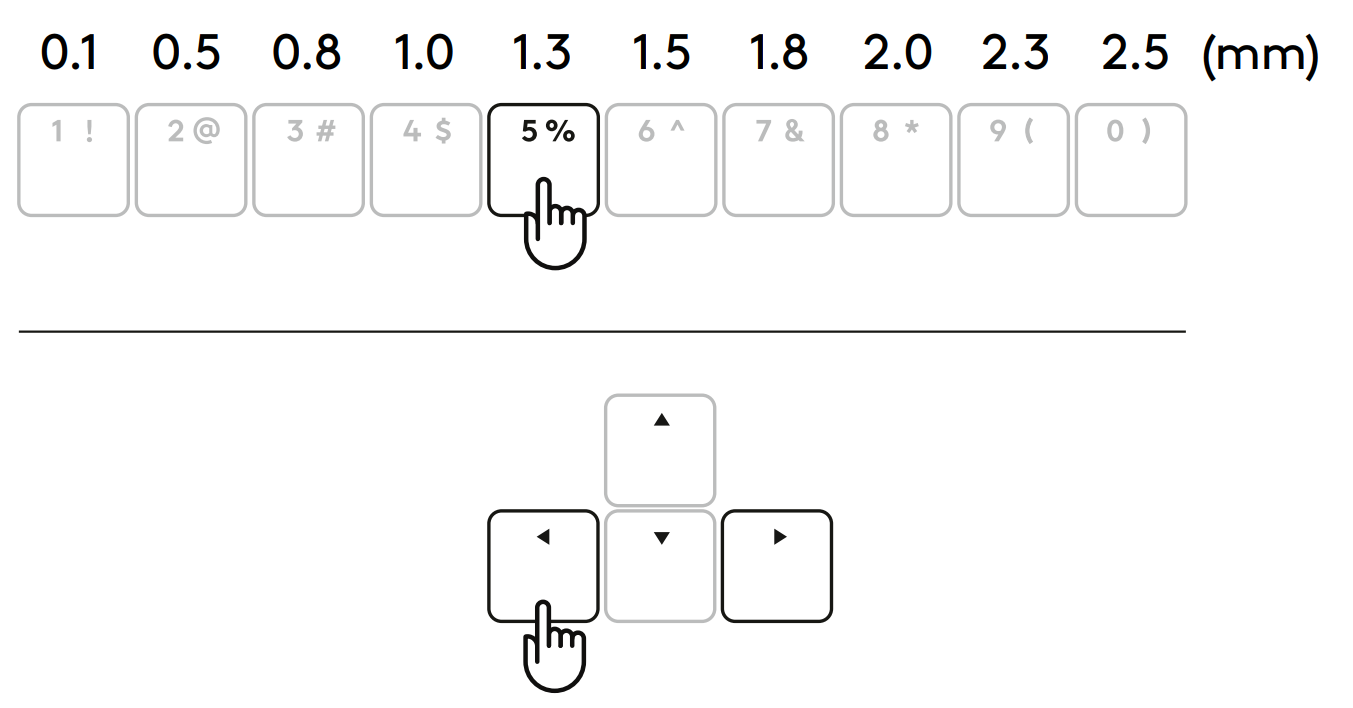
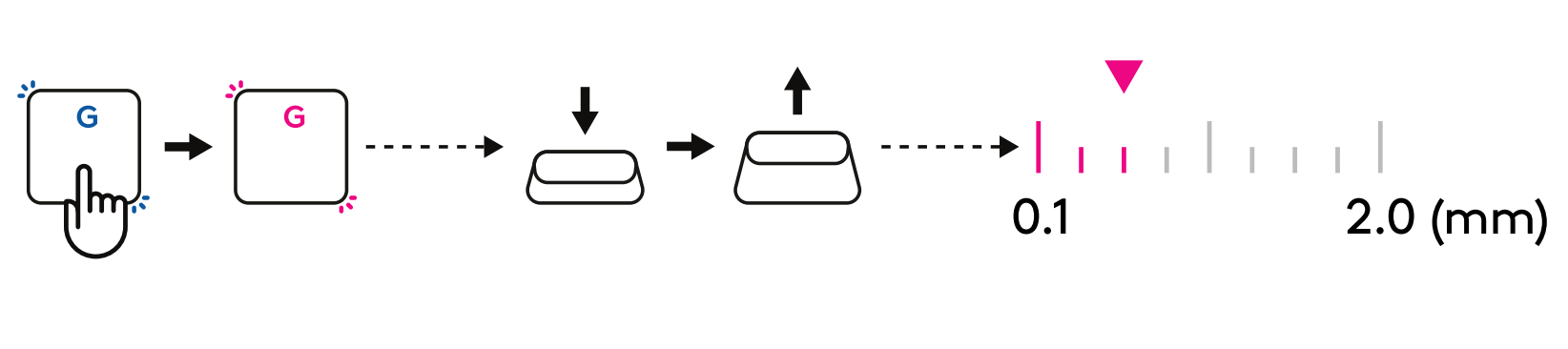
- Use arrow keys to increase or decrease the actuation point. You can also directly select the value you want by pressing the appropriate number (as shown below).
- Press any alphabet key to test the current actuation setting. The number keys will light
up from left to right to indicate how much pressure is needed to fully actuate a key.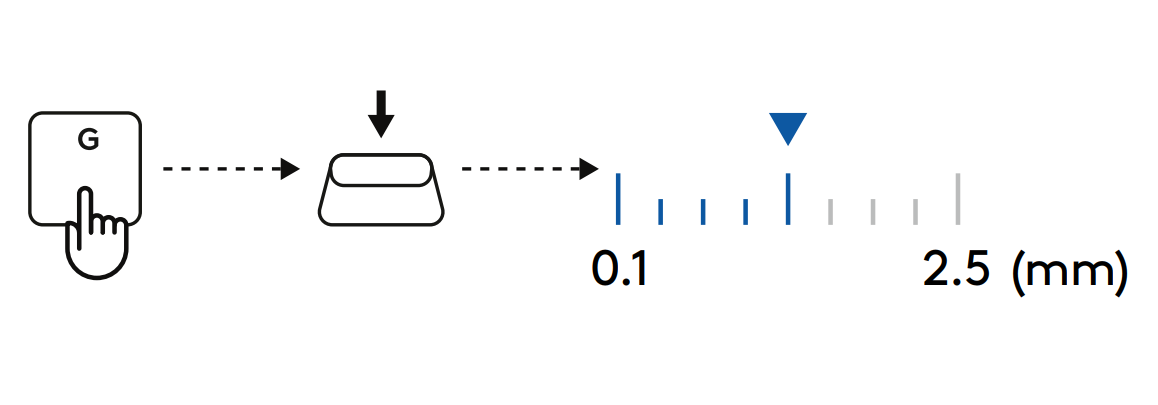
- Save changes & Exit the customizable analog profile.
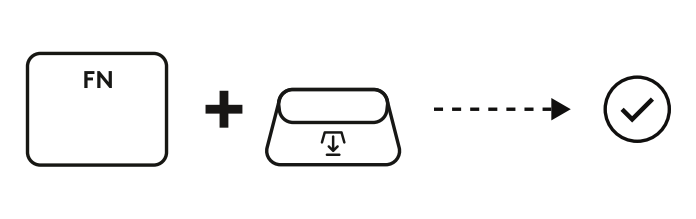
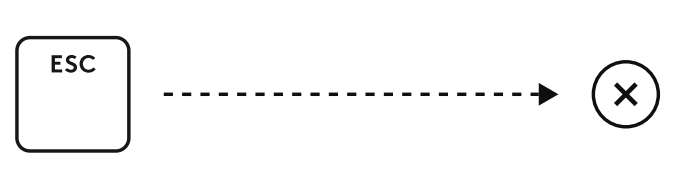
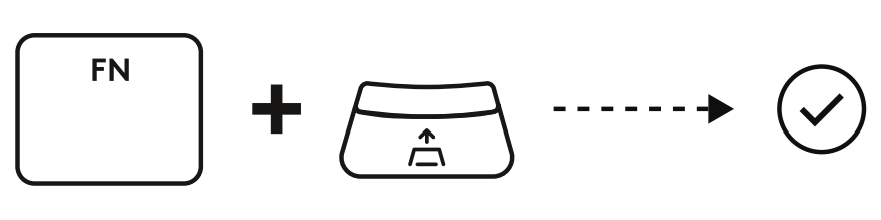
- Exit without saving changes to the customizable analog profile.
Quick Rapid Trigger adjustment:
-
Activate the Customizable Analog Profile by pressing FN+F5. The F5 key’s back light will turn Cyan to indicate that you have entered the configuration.
-
To enter Rapid Trigger mode, press FN+F7 You will see the default settings highlighted in pink.
-
When Rapid Trigger is turned ON, the F7 key blinks rapidly. When Rapid Trigger is turned OFF, the F7 key has a steady backlight. While in Rapid Trigger mode, Press F7 to enable or disable the rapid trigger.
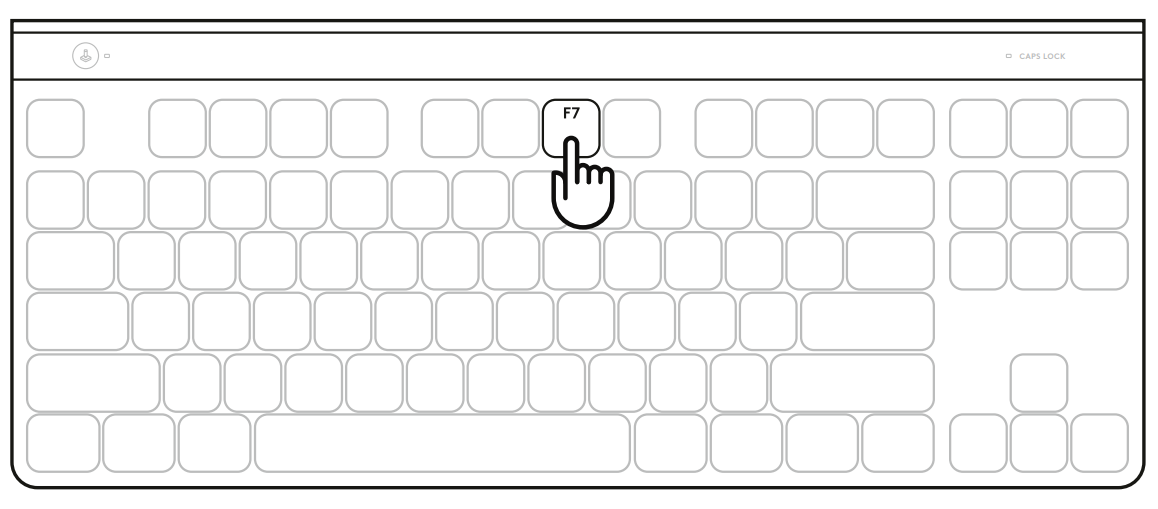
- Use arrow keys to increase or decrease the sensitivity of Rapid Trigger. You can also
directly select the value you want by pressing the appropriate number (as shown below).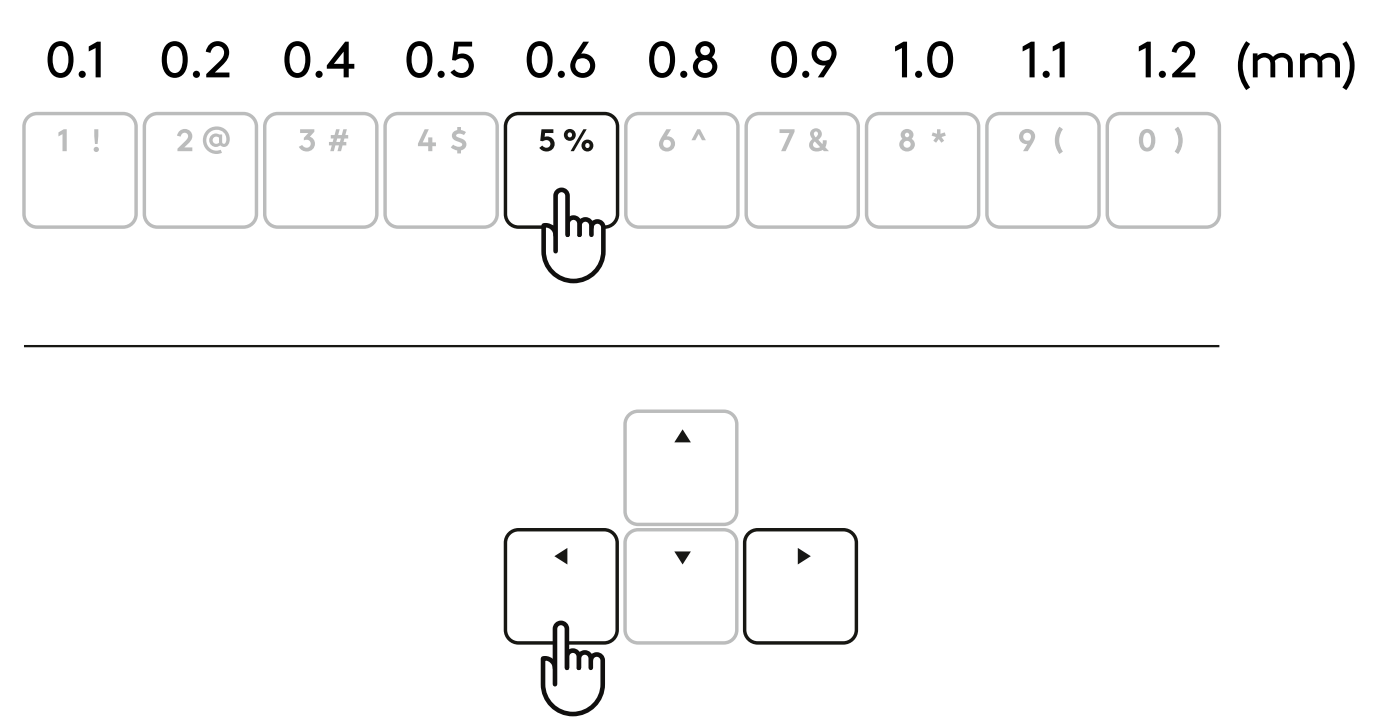
-
Press any alphabet key to test the current sensitivity setting. When pressed and released, the key’s light turns blue when actuated and magenta when it resets.
- Save changes & Exit the customizable analog profile.
- Exit without saving changes to the customizable analog profile.
NOTE: To configure individual keys, or to configure the rapid trigger’s values in steps of 0.1 mm, download and use G HUB software (www.logitechg.com/ghub).
Important Notice: The Firmware Update Tool is no longer supported or maintained by Logitech. We highly recommend using Logi Options+ for your supported Logitech devices. We are here to assist you during this transition.
Important Notice: The Logitech Preference Manager is no longer supported or maintained by Logitech. We highly recommend using Logi Options+ for your supported Logitech devices. We are here to assist you during this transition.
Important Notice: The Logitech Control Center is no longer supported or maintained by Logitech. We highly recommend using Logi Options+ for your supported Logitech devices. We are here to assist you during this transition.
Important Notice: The Logitech Connection Utility is no longer supported or maintained by Logitech. We highly recommend using Logi Options+ for your supported Logitech devices. We are here to assist you during this transition.
Important Notice: The Unifying Software is no longer supported or maintained by Logitech. We highly recommend using Logi Options+ for your supported Logitech devices. We are here to assist you during this transition.
Important Notice: The SetPoint software is no longer supported or maintained by Logitech. We highly recommend using Logi Options+ for your supported Logitech devices. We are here to assist you during this transition.
Frequently Asked Questions
There are no products available for this section
There are no Downloads for this Product
There are no Downloads for this Version
Compatible Product
