To connect your replacement earbud to your current working one, follow these steps:
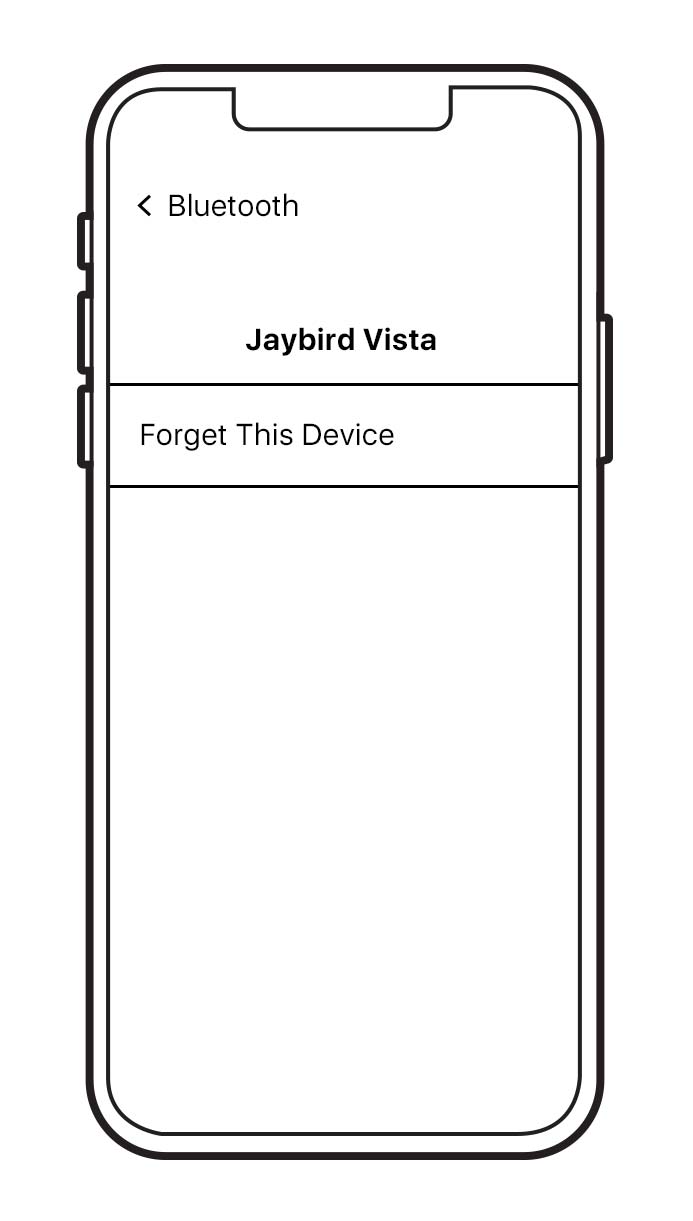
1. Open the Bluetooth® settings on your audio device and “FORGET” or “REMOVE” Jaybird Vista from the list of paired devices.
2. Put your replacement earbud in the charging case with your existing earbud. Close the case. Then plug the case into charge and wait for 5 minutes.
3. Open the charging case and press and hold the case button until the LED starts blinking white.
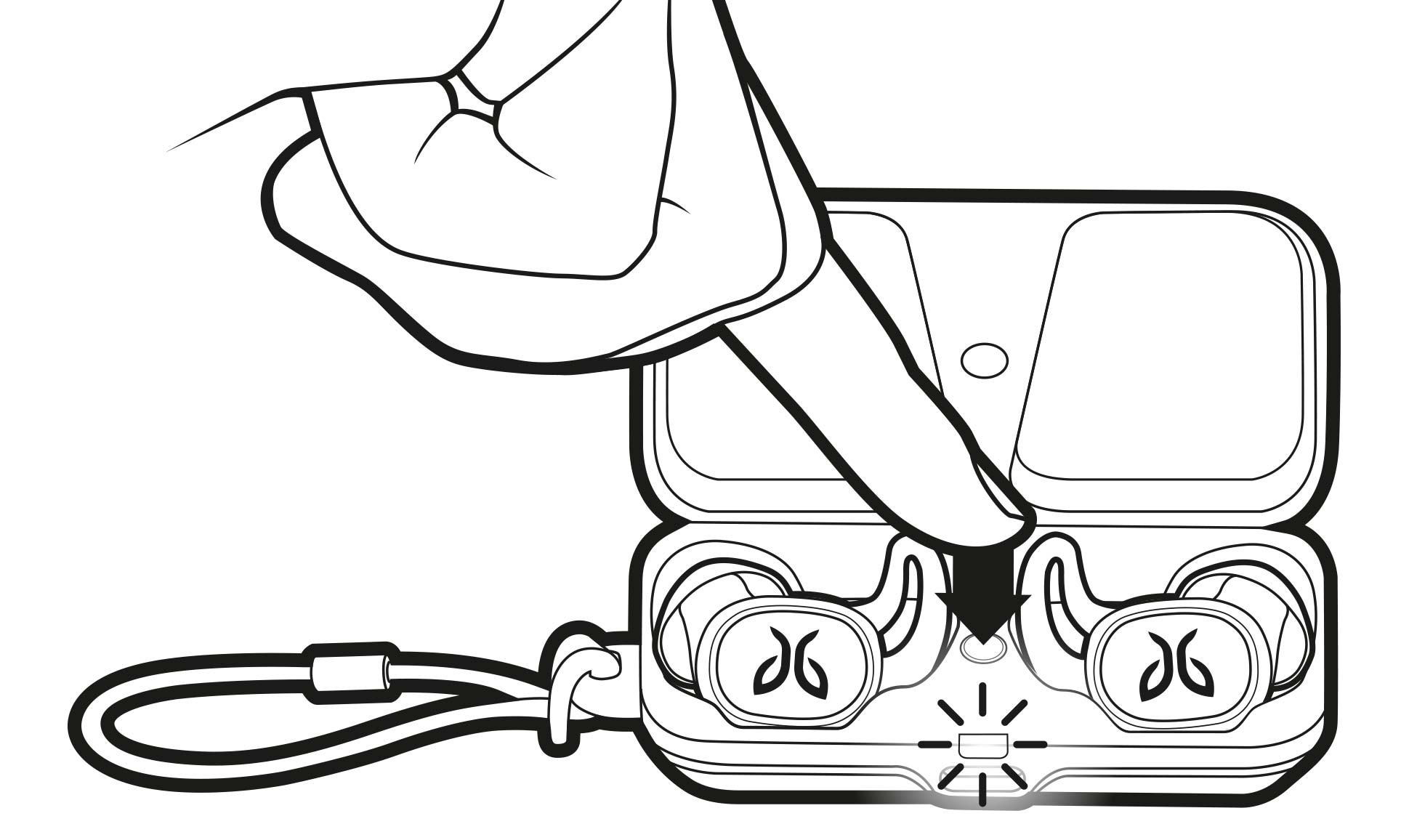
4. While the charging case LED is blinking white, double press the case button. The LED will blink pink. Now close the case.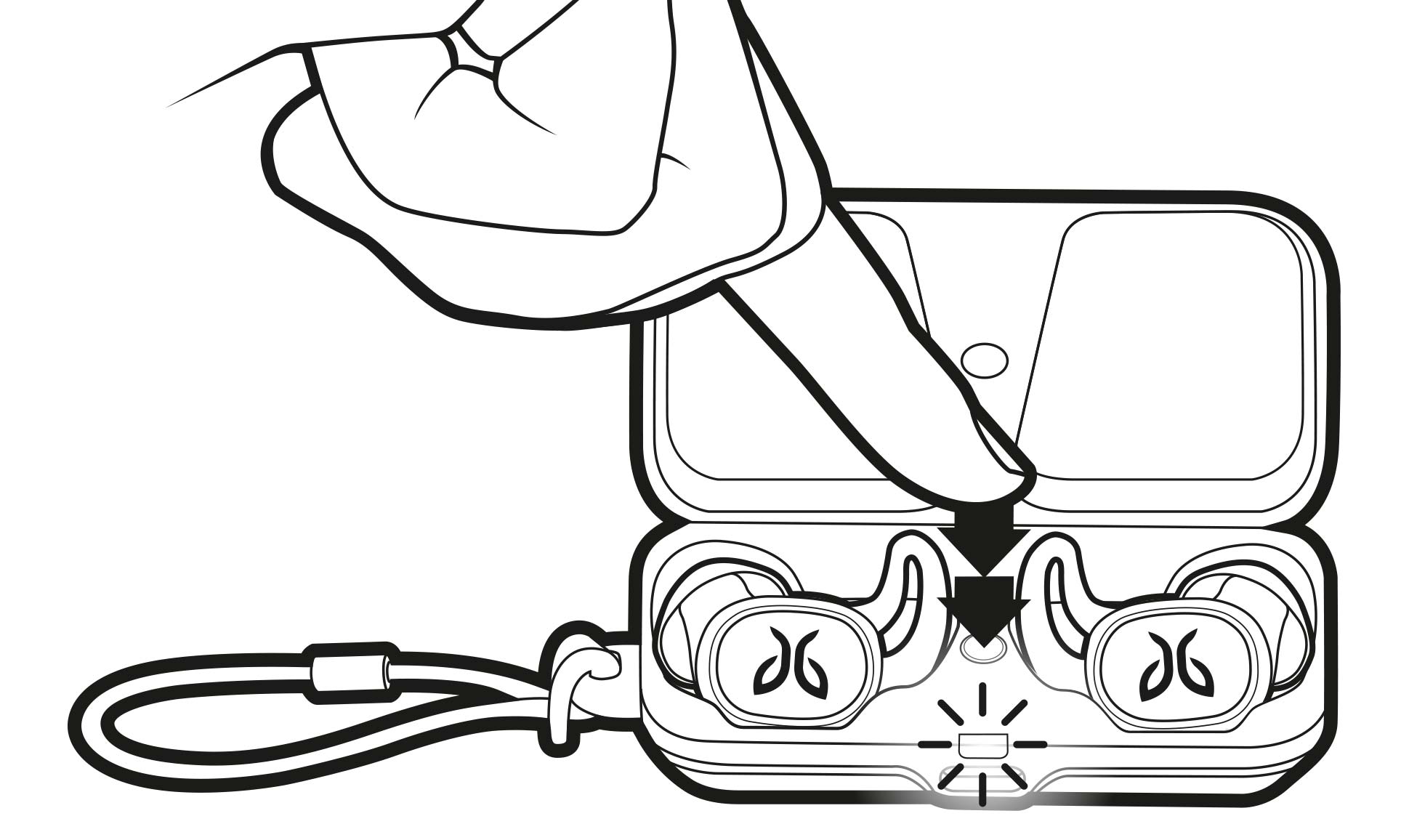
5. You can now pair the buds again:
-
Open the charging case. Press and hold the case button until the LED starts blinking white.
-
Go to your audio devices Bluetooth menu and select ‘Jaybird Vista’.
Tärkeä huomautus: Logitech ei enää tue tai ylläpidä laiteohjelmistopäivitystyökalua. Suosittelemme käyttämään Logi Options+-sovellusta tuetuilla Logitech-laitteilla . Saat meiltä apua siirtymävaiheessa.
Tärkeä huomautus: Logitech ei enää tue tai ylläpidä Logitech Preference Manageria. Suosittelemme käyttämään Logi Options+-sovellusta tuetuilla Logitech-laitteilla . Saat meiltä apua siirtymävaiheessa.
Tärkeä huomautus: Logitech ei enää tue tai ylläpidä Logitech Control Centeriä. Suosittelemme käyttämään Logi Options+-sovellusta tuetuilla Logitech-laitteilla . Saat meiltä apua siirtymävaiheessa.
Tärkeä huomautus: Logitech ei enää tue tai ylläpidä Logitechin yhteydenmuodostusohjelmaa. Suosittelemme käyttämään Logi Options+-sovellusta tuetuilla Logitech-laitteilla . Saat meiltä apua siirtymävaiheessa.
Tärkeä huomautus: Logitech ei enää tue tai ylläpidä Unifying-ohjelmistoa. Suosittelemme käyttämään Logi Options+-sovellusta tuetuilla Logitech-laitteilla . Saat meiltä apua siirtymävaiheessa.
Tärkeä huomautus: Logitech ei enää tue tai ylläpidä SetPoint-ohjelmistoa. Suosittelemme käyttämään Logi Options+-sovellusta tuetuilla Logitech-laitteilla . Saat meiltä apua siirtymävaiheessa.
Usein esitetyt kysymykset
Tälle osastolle ei ole saatavilla tuotteita
Tuotteelle ei ole latauksia
Versiolle ei ole latauksia.
Compatible Product
