In DirectInput mode, you can program the mouselook functionality to a thumbstick. Here's how:
NOTE: See Knowledge Base article 360023236454 for more information about input modes.
-
Create a new game profile. For instructions, see Knowledge Base article 360023236454
-
Go to Start > Programs > Logitech > Logitech Gaming Software.
-
Go to Profile > Edit… and choose your new game profile.
-
Select the thumbstick you want to assign the mouselook function to. Most people use the right thumbstick.
-
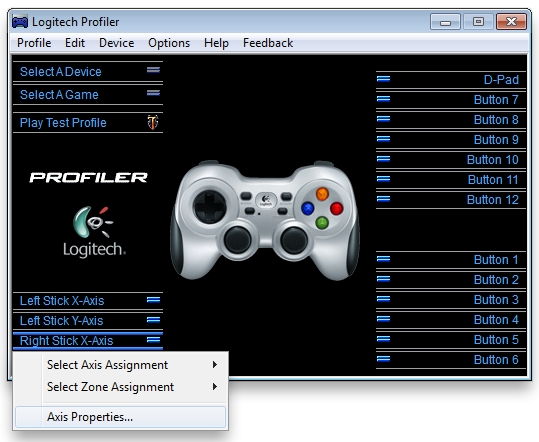
Choose Right Stick X-Axis > Axis Properties, as shown below.
-
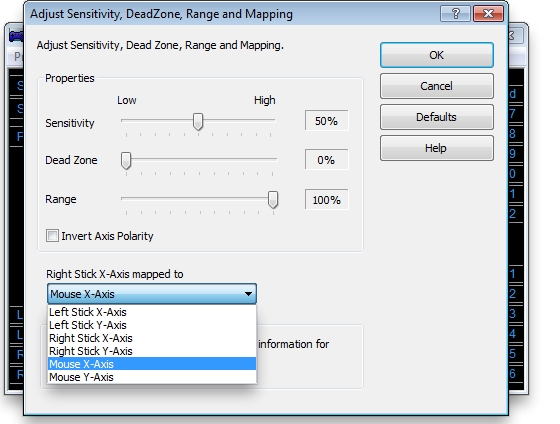
In the new window that opens (shown below), select "Mouse X-Axis" and click OK.
-
Repeat steps 5 - 6, but select Left Stick Y-Axis > Axis Properties.
-
Choose "Mouse Y-Axis" and click OK. Your mouselook function should now be mapped to your right thumbstick.
Contact information
If the above solutions do not resolve the issue, please see Knowledge Base article 21368 for instructions on contacting Logitech Technical Support.
重要なお知らせ:ファームウェア更新ツールのロジクールによるサポートと保守は終了しました。Logi Options+をサポート対象のロジクールデバイスにご利用いただくことを強くお勧めします。この移行についてご質問等ございましたら、ロジクールまでお問い合わせください。
重要なお知らせ:ロジクール環境設定マネージャのロジクールによるサポートと保守は終了しました。Logi Options+をサポート対象のロジクールデバイスにご利用いただくことを強くお勧めします。この移行についてご質問等ございましたら、ロジクールまでお問い合わせください。
重要なお知らせ:ロジクール Control Center のロジクールによるサポートと保守は終了しました。Logi Options+をサポート対象のロジクールデバイスにご利用いただくことを強くお勧めします。この移行についてご質問等ございましたら、ロジクールまでお問い合わせください。
重要なお知らせ:ロジクール接続ユーティリティのロジクールによるサポートと保守は終了しました。Logi Options+をサポート対象のロジクールデバイスにご利用いただくことを強くお勧めします。この移行についてご質問等ございましたら、ロジクールまでお問い合わせください。
重要なお知らせ:Unifying ソフトウェアのロジクールによるサポートと保守は終了しました。Logi Options+をサポート対象のロジクールデバイスにご利用いただくことを強くお勧めします。この移行についてご質問等ございましたら、ロジクールまでお問い合わせください。
重要なお知らせ:SetPoint ソフトウェアのロジクールによるサポートと保守は終了しました。Logi Options+をサポート対象のロジクールデバイスにご利用いただくことを強くお勧めします。この移行についてご質問等ございましたら、ロジクールまでお問い合わせください。
よくある質問
このセクションでは利用可能な製品がありません
この製品用のダウンロードはありません
このバージョンのダウンロードはありません。
Compatible Product
