In DirectInput mode, you can program the mouselook functionality to a thumbstick. Here's how:
NOTE: See Knowledge Base article 360023236454 for more information about input modes.
-
Create a new game profile. For instructions, see Knowledge Base article 360023236454
-
Go to Start > Programs > Logitech > Logitech Gaming Software.
-
Go to Profile > Edit… and choose your new game profile.
-
Select the thumbstick you want to assign the mouselook function to. Most people use the right thumbstick.
-
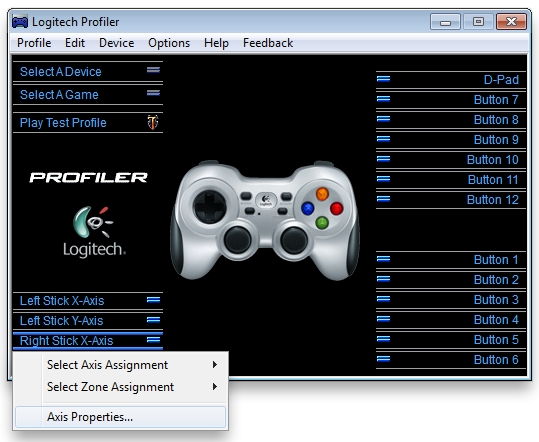
Choose Right Stick X-Axis > Axis Properties, as shown below.
-
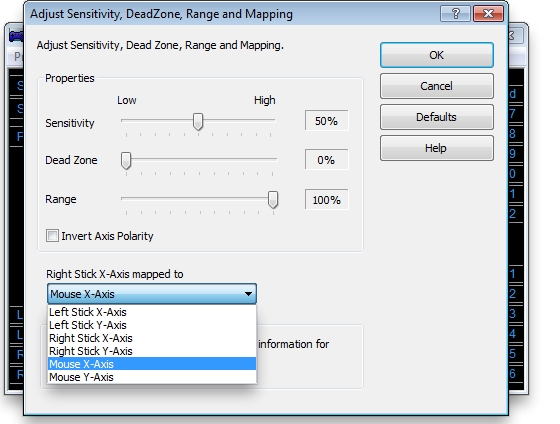
In the new window that opens (shown below), select "Mouse X-Axis" and click OK.
-
Repeat steps 5 - 6, but select Left Stick Y-Axis > Axis Properties.
-
Choose "Mouse Y-Axis" and click OK. Your mouselook function should now be mapped to your right thumbstick.
Contact information
If the above solutions do not resolve the issue, please see Knowledge Base article 21368 for instructions on contacting Logitech Technical Support.
중요 고지: Logitech은 펌웨어 업데이트 도구를 더 이상 지원하거나 유지보수하지 않습니다. 지원되는 Logitech 장치 에는 Logi Options+ 사용을 적극 권장합니다. 전환 과정에서 도움이 필요하시면 언제든지 도와드리겠습니다.
중요 고지: Logitech은 Logitech Preference Manager를 더 이상 지원하거나 유지보수하지 않습니다. 지원되는 Logitech 장치에는 Logi Options+ 사용을 적극 권장합니다. 전환 과정에서 도움이 필요하시면 언제든지 도와드리겠습니다.
중요 고지: Logitech은 Logitech Control Center를 더이상 지원하거나 유지보수하지 않습니다. 지원되는 Logitech 장치에는 Logi Options+ 사용을 적극 권장합니다. 전환 과정에서 도움이 필요하시면 언제든지 도와드리겠습니다.
중요 고지: Logitech은 Logitech Connection Utility를 더이상 지원하거나 유지보수하지 않습니다. 지원되는 Logitech 장치에는 Logi Options+ 사용을 적극 권장합니다. 전환 과정에서 도움이 필요하시면 언제든지 도와드리겠습니다.
중요 고지: Unifying 소프트웨어는 더 이상 Logitech에서 지원하거나 유지보수하지 않습니다. 지원되는 Logitech 장치에는 Logi Options+를 사용하는 것을 적극 권장합니다. 전환 과정에서 도움이 필요하시면 언제든지 도와드리겠습니다.
중요 고지: Logitech은 SetPoint 소프트웨어를 더 이상 지원하지 않습니다. 지원되는 Logitech 장치에는 Logi Options+ 사용을 적극 권장합니다. 전환 과정에서 도움이 필요하시면 언제든지 도와드리겠습니다.
FAQ(자주 묻는 질문)
이 섹션에 사용할 수있는 제품이 없습니다
이 제품에 대한 다운로드가 없습니다.
이 버전에 대한 다운로드가 없습니다.
Compatible Product
