To associate an action with a gesture:
- Start Logitech Options:
Windows: Start > All Programs > Logitech > Logitech Options
Mac: Macintosh HD > Applications > Logitech Options - Select the Mouse tab in the top left corner left of the Logitech Options window.
- Select one of the buttons on the mouse by clicking on the blue circle next to the button. The options list for the button appears.
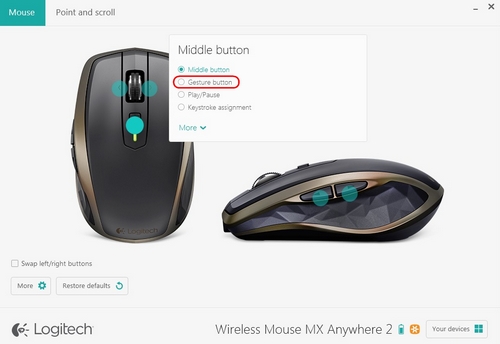
- Select Gesture button.
NOTE: By default, the Windows management set of gestures is selected.
If you’d like to associate a different set of gestures with the button, select another option from the list: Media Controls, Pan, Zoom/Rotate, Navigate windows, or Arrange windows.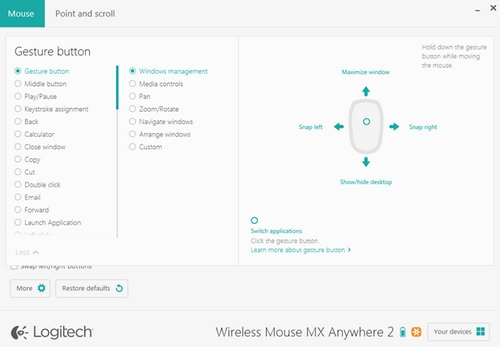
You can also assign individual actions to each of the four gestures. Here’s how:
- In the Gesture button list, select Custom.
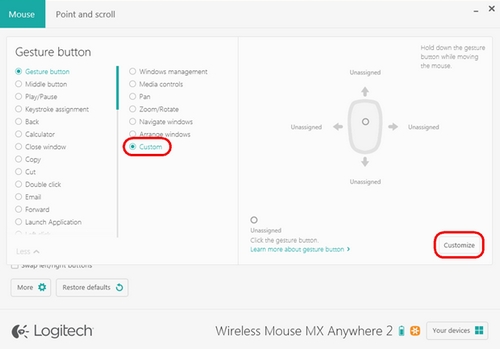
- In the lower right pane, click on Customize.
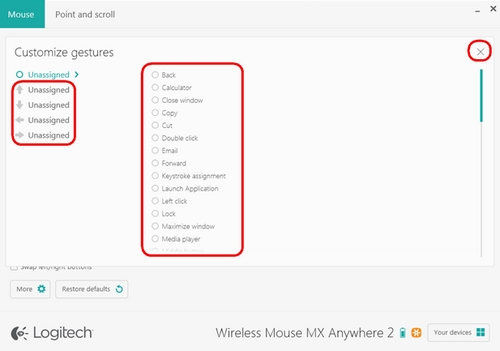
- Click on one of the four gesture arrows and then select an option from the list to assign to it. As soon as you make your selection, it is saved. Click on the “X” in the corner to close the window.
You can also associate an application or a keystroke to a gesture button.
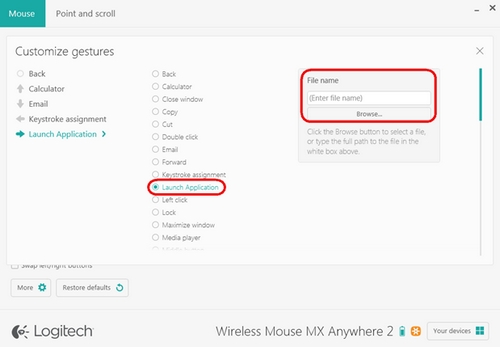
To launch an application:
- Select Launch Application from the list.
- In the File name box, enter the full path to the application, or locate it using the Browse button.
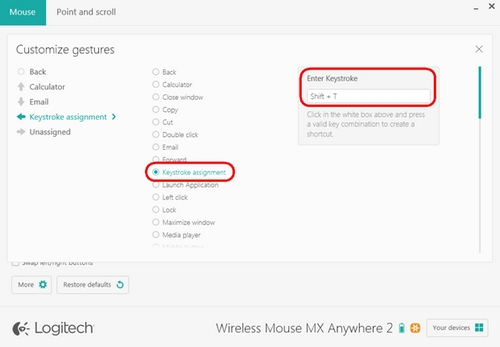
To assign a custom keystroke:
- Select Keystroke assignment.
- In the Enter Keystroke pane, click in the white box, and then enter a keystroke combination.
Ważna uwaga: Narzędzie do aktualizacji oprogramowania układowego nie jest już objęte wsparciem firmy Logitech ani nie jest przez nią utrzymywane. Zdecydowanie zalecamy korzystanie z aplikacji Logi Options+ w przypadku wspieranych urządzeń firmy Logitech. Chętnie służymy pomocą w tym okresie przejściowym.
Ważna uwaga: Oprogramowanie Logitech Preference Manager nie jest już objęte wsparciem firmy Logitech ani nie jest przez nią utrzymywane. Zdecydowanie zalecamy korzystanie z aplikacji Logi Options+ w przypadku wspieranych urządzeń firmy Logitech. Chętnie służymy pomocą w tym okresie przejściowym.
Ważna uwaga: Oprogramowanie Logitech Control Center nie jest już objęte wsparciem firmy Logitech ani nie jest przez nią utrzymywane. Zdecydowanie zalecamy korzystanie z aplikacji Logi Options+ w przypadku wspieranych urządzeń firmy Logitech. Chętnie służymy pomocą w tym okresie przejściowym.
Ważna uwaga: Oprogramowanie Logitech Connection Utility nie jest już objęte wsparciem firmy Logitech ani nie jest przez nią utrzymywane. Zdecydowanie zalecamy korzystanie z aplikacji Logi Options+ w przypadku wspieranych urządzeń firmy Logitech. Chętnie służymy pomocą w tym okresie przejściowym.
Ważna uwaga: Oprogramowanie Unifying nie jest już objęte wsparciem firmy Logitech ani nie jest przez nią utrzymywane. Zdecydowanie zalecamy korzystanie z aplikacji Logi Options+ w przypadku wspieranych urządzeń firmy Logitech. Chętnie służymy pomocą w tym okresie przejściowym.
Ważna uwaga: Oprogramowanie SetPoint nie jest już obsługiwane ani obsługiwane przez firmę Logitech. Zdecydowanie zalecamy korzystanie z aplikacji Logi Options+ w przypadku wspieranych urządzeń firmy Logitech. Chętnie służymy pomocą w tym okresie przejściowym.
Często zadawane pytania
Brak produktów dostępnych dla tej sekcji
Dla tego produktu nie są dostępne żadne pliki do pobrania
Brak plików do pobrania dla tej wersji.
Compatible Product
