Your Jaybird FREEDOM headphones come with a charging clip that attaches to the inline remote. To charge, follow the steps below.
- Connect the included USB charging cable to the charging clip on one end.
- Connect the charging clip to the inline remote on your FREEDOM headphones making sure the contacts on the charging clip line up to the contacts on the inline remote.
- Connect the other end of the USB charging cable to a USB power source.
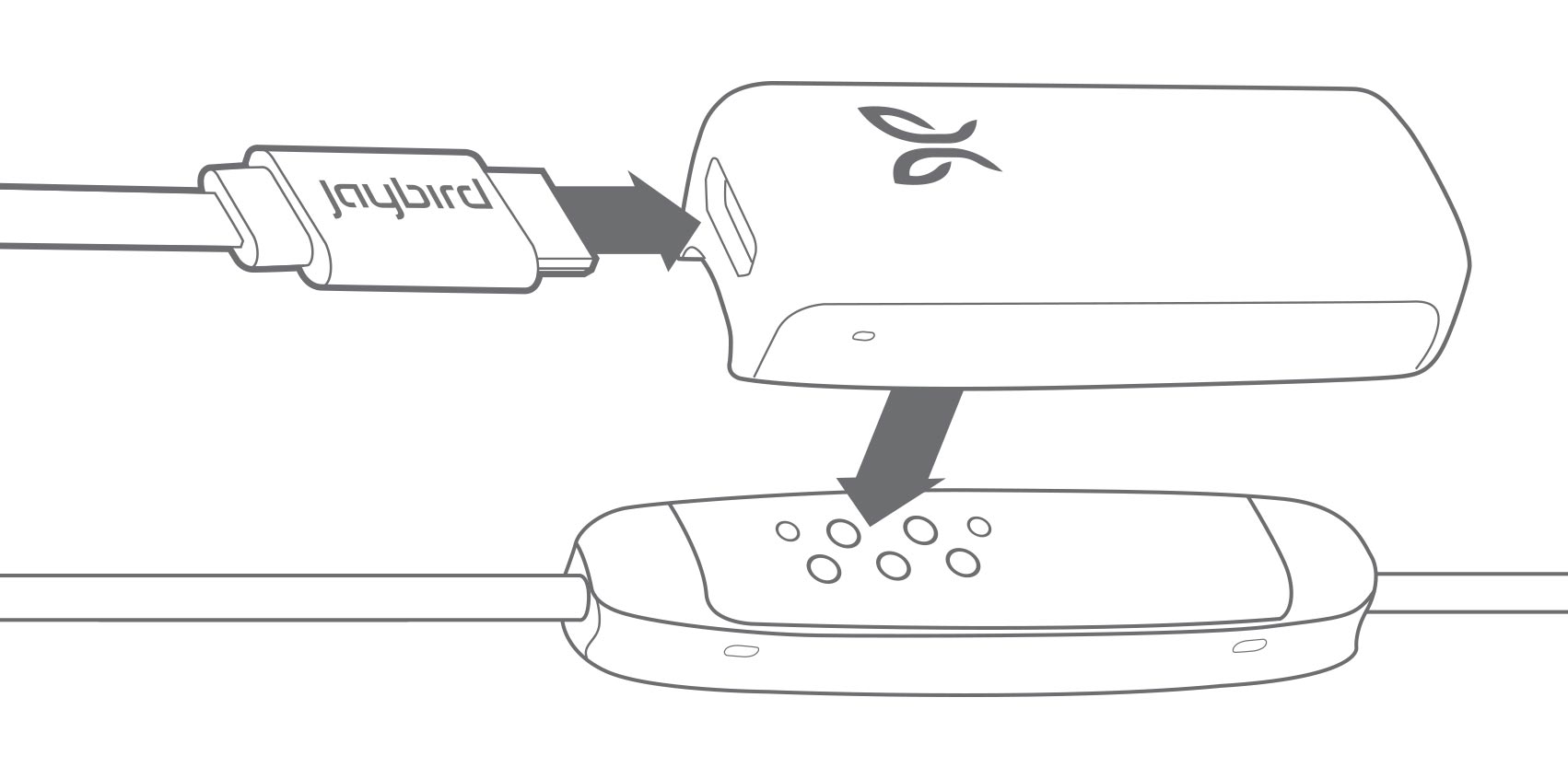
- Limit the charge time to 2.5 hours. To get the most out of your battery, it is recommended to charge the headphones when you hear the ‘Charge Me’ voice prompt (about 10% battery remaining). If you’re pressed for time and only have time to partially charge your headphones, you’ll get around an hour of playtime for every 20 minutes of charge.
When the device is turned on and not playing music, pressing Volume + or Volume – will announce the battery level. You should be able to see your battery level within 1% accuracy if you download and connect to the Jaybird App.
NOTE: Make sure to check the charging source before you begin charging. We recommend using a computer as it’s the best and safest method. Anything 1 amp or less is safe. Some chargers can produce a lot more power than is needed to charge your headphones, so try and avoid them.
Viktig anmärkning: Uppdateringsverktyget för inbyggd programvara stöds eller underhålls inte längre av Logitech. Vi rekommenderar starkt att du använder Logi Options+ för dina Logitech-enheter som stöds. Vi finns här om du behöver hjälp under övergången.
Viktig anmärkning: Logitech Preference Manager stöds eller underhålls inte längre av Logitech. Vi rekommenderar starkt att du använder Logi Options+ för dina Logitech-enheter som stöds. Vi finns här om du behöver hjälp under övergången.
Viktig anmärkning: Logitech Control Center stöds eller underhålls inte längre av Logitech. Vi rekommenderar starkt att du använder Logi Options+ för dina Logitech-enheter som stöds. Vi finns här om du behöver hjälp under övergången.
Viktig anmärkning: Logitechs anslutningsverktyg stöds eller underhålls inte längre av Logitech. Vi rekommenderar starkt att du använder Logi Options+ för dina Logitech-enheter som stöds. Vi finns här om du behöver hjälp under övergången.
Viktig anmärkning: Unifying-programvaran stöds eller underhålls inte längre av Logitech. Vi rekommenderar starkt att du använder Logi Options+ för dina Logitech-enheter som stöds. Vi finns här om du behöver hjälp under övergången.
Viktig anmärkning: SetPoint-programvaran stöds eller underhålls inte längre av Logitech. Vi rekommenderar starkt att du använder Logi Options+ för dina Logitech-enheter som stöds. Vi finns här om du behöver hjälp under övergången.
Vanliga frågor
Det finns inga tillgängliga produkter för den här sektionen
Det finns inga nedladdningar för denna produkt
Det finns inga nedladdningar för den här versionen.
Compatible Product
