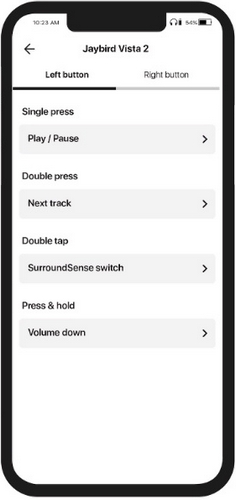
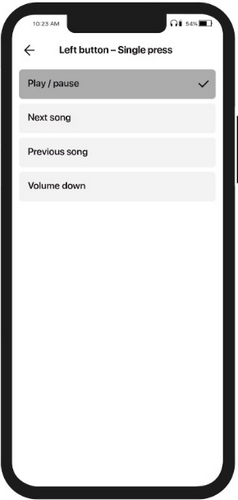
You can customize each of the multi-function button functionality by using the Jaybird App. There you can replace the default controls with the voice assistant and other preferred controls options.
To customize the functionality of your Jaybird Vista 2 earbuds multi-function buttons:
- Download and install the Jaybird App.
- Open the Jaybird App on your phone.
- Navigate to Button Controls.
- On the Button Controls screen you can customize each multi-function button functionality by selecting your preferred action.
Please note that regardless of how you have customized the multi-function buttons, your earbuds automatically turn off when you put them in the charging case and close it. Your earbuds will automatically turn on when you open the charging case.
หมายเหตุสำคัญ: Logitech ไม่รองรับหรือบำรุงรักษาเครื่องมืออัปเดตเฟิร์มแวร์อีกต่อไปแล้ว เราขอแนะนำให้ใช้ Logi Options+ สำหรับอุปกรณ์ Logitech ที่รองรับ เราพร้อมให้ความช่วยเหลือคุณในระหว่างการเปลี่ยนแปลงนี้
หมายเหตุสำคัญ: Logitech ไม่รองรับหรือบำรุงรักษา Logitech Preference Manager อีกต่อไปแล้ว เราขอแนะนำให้ใช้ Logi Options+ สำหรับอุปกรณ์ Logitech ที่รองรับ เราพร้อมให้ความช่วยเหลือคุณในระหว่างการเปลี่ยนแปลงนี้
หมายเหตุสำคัญ: Logitech ไม่รองรับหรือบำรุงรักษา Logitech Control Center อีกต่อไปแล้ว เราขอแนะนำให้ใช้ Logi Options+ สำหรับอุปกรณ์ Logitech ที่รองรับ เราพร้อมให้ความช่วยเหลือคุณในระหว่างการเปลี่ยนแปลงนี้
หมายเหตุสำคัญ: Logitech ไม่รองรับหรือบำรุงรักษา Logitech Connection Utility อีกต่อไปแล้ว เราขอแนะนำให้ใช้ Logi Options+ สำหรับอุปกรณ์ Logitech ที่รองรับ เราพร้อมให้ความช่วยเหลือคุณในระหว่างการเปลี่ยนแปลงนี้
หมายเหตุสำคัญ: Logitech ไม่รองรับหรือบำรุงรักษา Unifying Software อีกต่อไปแล้ว เราขอแนะนำให้ใช้ Logi Options+ สำหรับอุปกรณ์ Logitech ที่รองรับ เราพร้อมให้ความช่วยเหลือคุณในระหว่างการเปลี่ยนแปลงนี้
หมายเหตุสำคัญ: ซอฟต์แวร์ SetPoint ไม่รองรับหรือดูแลรักษาโดย Logitech อีกต่อไป เราขอแนะนำให้ใช้ Logi Options+ สำหรับอุปกรณ์ Logitech ที่รองรับ เราพร้อมให้ความช่วยเหลือคุณในระหว่างการเปลี่ยนแปลงนี้
คำถามที่พบบ่อย
ไม่มีสินค้าสำหรับส่วนนี้
ไม่มีรายการดาวน์โหลดสำหรับผลิตภัณฑ์นี้
ไม่มีการดาวน์โหลดสำหรับเวอร์ชันนี้
Compatible Product
