See Use gestures on the M170/M171/B170 mouse for more information on how to use gestures.
To associate an action with a gesture:
- Start Logitech Options:
Windows: Start > All Programs > Logitech > Logitech Options
Mac: Macintosh HD > Applications > Logitech Options - Select the Mouse tab in the top left corner left of the Logitech Options window.
- Select one of the buttons on the mouse by clicking on the blue circle next to the button. The options list for the button appears.

- Select Gesture button.
NOTE: By default, the Windows management set of gestures is selected.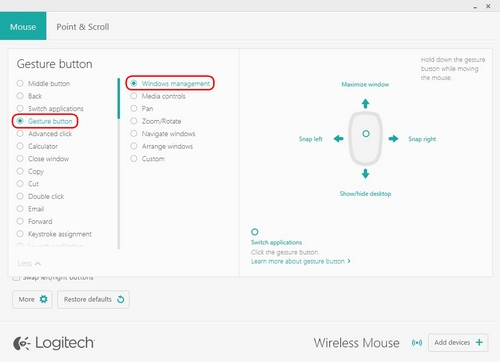
You can assign individual actions to each of the four gestures. Here’s how:
- In the Gesture button list, select Custom.
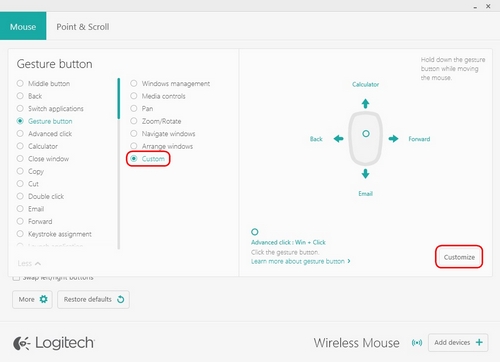
- In the lower right pane, click on Customize.
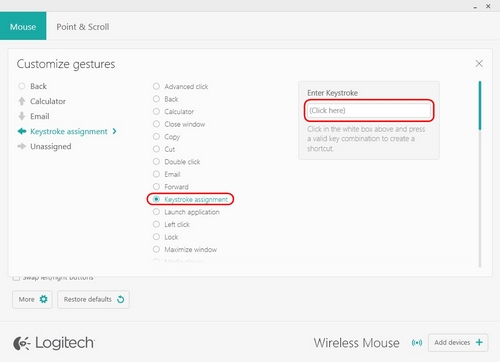
- Click on one of the four gesture arrows and then select an option from the list to assign to it. As soon as you make your selection, it is saved. Click on the “X” in the corner to close the window.
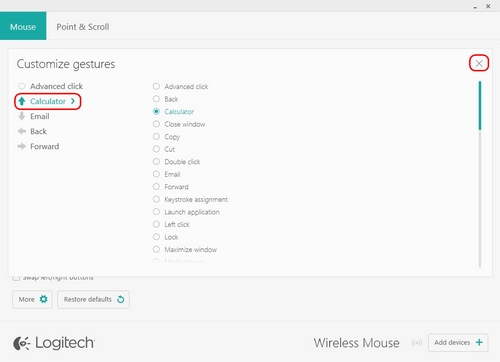
To launch an application:
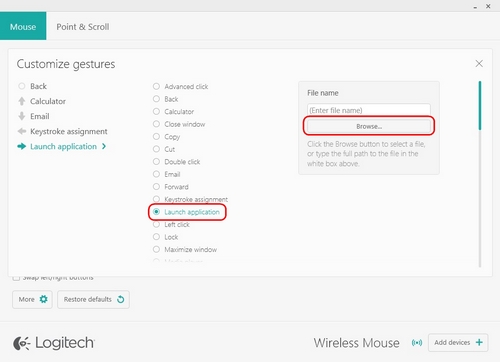
- Select Launch Application from the list.
- In the File name box, enter the full path to the application, or locate it using the Browse button.
- Select Keystroke assignment.
- On the right, under Enter Keystroke, enter a keystroke combination.
หมายเหตุสำคัญ: Logitech ไม่รองรับหรือบำรุงรักษาเครื่องมืออัปเดตเฟิร์มแวร์อีกต่อไปแล้ว เราขอแนะนำให้ใช้ Logi Options+ สำหรับอุปกรณ์ Logitech ที่รองรับ เราพร้อมให้ความช่วยเหลือคุณในระหว่างการเปลี่ยนแปลงนี้
หมายเหตุสำคัญ: Logitech ไม่รองรับหรือบำรุงรักษา Logitech Preference Manager อีกต่อไปแล้ว เราขอแนะนำให้ใช้ Logi Options+ สำหรับอุปกรณ์ Logitech ที่รองรับ เราพร้อมให้ความช่วยเหลือคุณในระหว่างการเปลี่ยนแปลงนี้
หมายเหตุสำคัญ: Logitech ไม่รองรับหรือบำรุงรักษา Logitech Control Center อีกต่อไปแล้ว เราขอแนะนำให้ใช้ Logi Options+ สำหรับอุปกรณ์ Logitech ที่รองรับ เราพร้อมให้ความช่วยเหลือคุณในระหว่างการเปลี่ยนแปลงนี้
หมายเหตุสำคัญ: Logitech ไม่รองรับหรือบำรุงรักษา Logitech Connection Utility อีกต่อไปแล้ว เราขอแนะนำให้ใช้ Logi Options+ สำหรับอุปกรณ์ Logitech ที่รองรับ เราพร้อมให้ความช่วยเหลือคุณในระหว่างการเปลี่ยนแปลงนี้
หมายเหตุสำคัญ: Logitech ไม่รองรับหรือบำรุงรักษา Unifying Software อีกต่อไปแล้ว เราขอแนะนำให้ใช้ Logi Options+ สำหรับอุปกรณ์ Logitech ที่รองรับ เราพร้อมให้ความช่วยเหลือคุณในระหว่างการเปลี่ยนแปลงนี้
หมายเหตุสำคัญ: ซอฟต์แวร์ SetPoint ไม่รองรับหรือดูแลรักษาโดย Logitech อีกต่อไป เราขอแนะนำให้ใช้ Logi Options+ สำหรับอุปกรณ์ Logitech ที่รองรับ เราพร้อมให้ความช่วยเหลือคุณในระหว่างการเปลี่ยนแปลงนี้
คำถามที่พบบ่อย
ไม่มีสินค้าสำหรับส่วนนี้
ไม่มีรายการดาวน์โหลดสำหรับผลิตภัณฑ์นี้
ไม่มีการดาวน์โหลดสำหรับเวอร์ชันนี้
Compatible Product
