In DirectInput mode, you can program the mouselook functionality to a thumbstick. Here's how:
NOTE: See Knowledge Base article 360023236454 for more information about input modes.
-
Create a new game profile. For instructions, see Knowledge Base article 360023236454
-
Go to Start > Programs > Logitech > Logitech Gaming Software.
-
Go to Profile > Edit… and choose your new game profile.
-
Select the thumbstick you want to assign the mouselook function to. Most people use the right thumbstick.
-
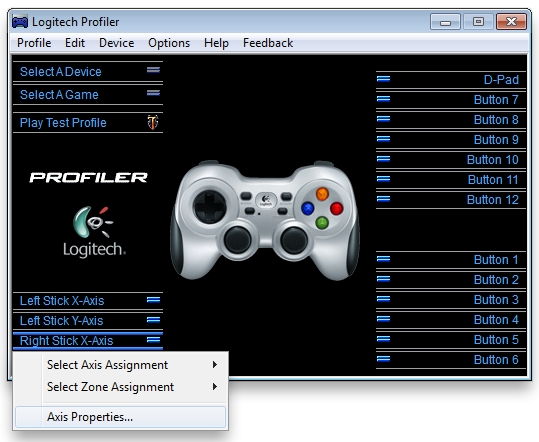
Choose Right Stick X-Axis > Axis Properties, as shown below.
-
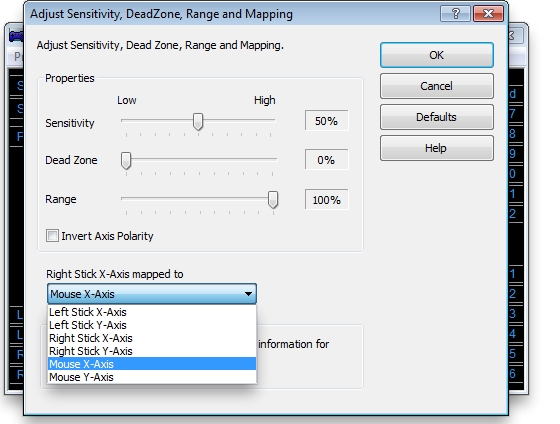
In the new window that opens (shown below), select "Mouse X-Axis" and click OK.
-
Repeat steps 5 - 6, but select Left Stick Y-Axis > Axis Properties.
-
Choose "Mouse Y-Axis" and click OK. Your mouselook function should now be mapped to your right thumbstick.
Contact information
If the above solutions do not resolve the issue, please see Knowledge Base article 21368 for instructions on contacting Logitech Technical Support.
重要提示:罗技不再对固件更新工具提供支持或维护。强烈推荐您将 Logi Options+ 用于受支持的罗技设备。在此过渡期间,我们将为您提供帮助。
重要提示:罗技不再对 Logitech Preference Manager 提供支持或维护。强烈推荐您将 Logi Options+ 用于受支持的罗技设备。在此过渡期间,我们将为您提供帮助。
重要提示:罗技不再对 Logitech Control Center 提供支持或维护。强烈推荐您将 Logi Options+ 用于受支持的罗技设备。在此过渡期间,我们将为您提供帮助。
重要提示:罗技不再对 Logitech Connection Utility 提供支持或维护。强烈推荐您将 Logi Options+ 用于受支持的罗技设备。在此过渡期间,我们将为您提供帮助。
重要提示:罗技不再对 Unifying 软件提供支持或维护。强烈推荐您将 Logi Options+ 用于受支持的罗技设备。在此过渡期间,我们将为您提供帮助。
重要提示:罗技不再支持或维护 SetPoint 软件。强烈推荐您将 Logi Options+ 用于受支持的罗技设备。在此过渡期间,我们将为您提供帮助。
常问问题
此部分没有可用的产品
没有此产品的相关下载内容
没有此版本的相关下载内容。
Compatible Product
